
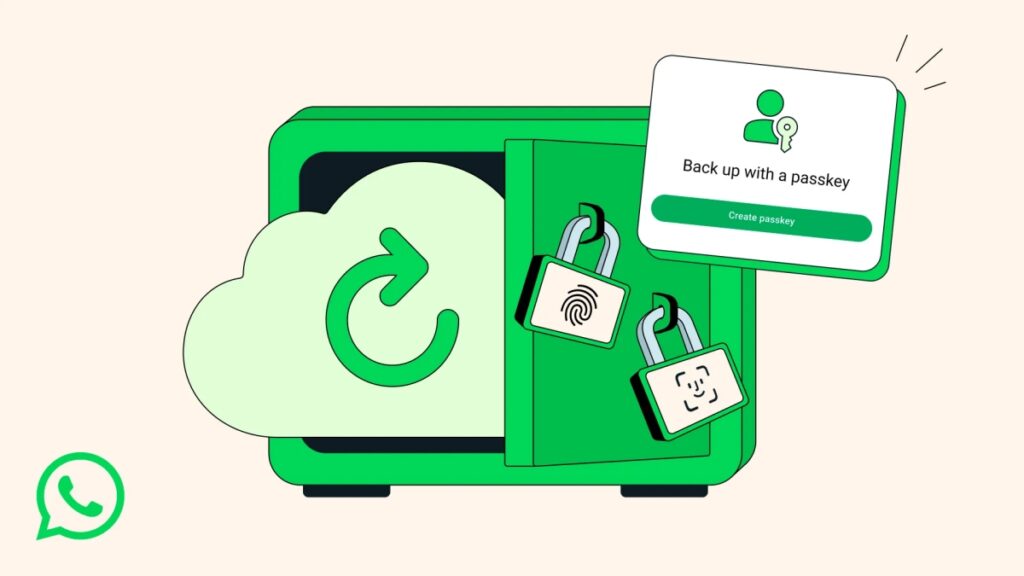

How to Stop Panicking About Lost Chats: The Ultimate WhatsApp Chat Backup Guide

Three months ago, my phone slipped off a ferry railing into the sea. As it sank, I didn’t think about the hardware—I thought about the last conversation I had with my grandmother, the voice note from my toddler’s first steps, and a client contract that existed only inside WhatsApp. When I finally restored my new phone, every single one of those items was waiting for me. Why? Because I had finally stopped trusting luck and started using a real whatsapp chat backup strategy.
Most people hit “Back Up Now” once and assume they’re safe. They aren’t. I’ve learned that the hard way—through corrupted backups, full cloud storage, and one terrifying moment when I realized my “automatic backup” had been failing silently for six months. This guide isn’t a rehash of WhatsApp’s help page. It’s the system I wish I’d had years ago.
Cloud Backups Are Not All Equal (And That’s a Problem)
Both iPhone and Android users can back up to the cloud, but the differences matter more than most people realize. Let’s break them down honestly.
| Feature | iOS (iCloud) | Android (Google Drive) |
|---|---|---|
| Free storage limit | 5 GB | 15 GB |
| Includes videos by default? | Yes (can be turned off) | Yes (can be turned off) |
| Backup frequency | Daily / Weekly / Monthly / Manual | Daily / Weekly / Monthly / Manual |
| End-to-end encrypted? | No (unless you enable it manually) | No (unless you enable it manually) |
| Cross-platform restore | ❌ Impossible | ❌ Impossible |
The hidden killer: On Android, your WhatsApp backup counts toward your Google Drive storage only if it hasn’t been updated in over a year. That’s right—Google used to offer free unlimited WhatsApp backups, but as of December 2023, they now count toward your quota. On iOS, it’s always counted toward iCloud.
A Personal Mistake I’ll Never Repeat
I once assumed my iPhone was backing up WhatsApp every night because I saw “Backup to iCloud” toggled on. What I missed: my iCloud storage was full of old device backups. WhatsApp couldn’t write new data, so it just… stopped. No error message, no red dot. Just silence. Now, I manually check my backup size and cloud availability every two weeks.
The Underrated Hero: Local Backups (Your Offline Insurance)
Cloud is convenient. But clouds can be hacked, accounts can be locked, and internet can fail. That’s why a real whatsapp chat backup strategy includes a local copy—a file stored directly on your phone or computer.
For Android Users (It’s Hiding in Plain Sight)
WhatsApp automatically creates a local backup of your chats every day at 2 AM, saved in your phone’s internal storage. You’ve probably never seen it. Here’s how to find and use it:
- Open Files or My Files app.
- Navigate to
Internal Storage > Android > media > com.whatsapp > WhatsApp > Databases. - Look for
msgstore.db.crypt14(or crypt12 on older phones).
That single file is your entire chat history. If you ever need to restore without the cloud, uninstall WhatsApp, reinstall it, and when prompted, tap Restore from local backup before connecting to Wi-Fi. The phone will find that file automatically.
For iOS Users (Trickier, But Possible)
Apple doesn’t give you direct file access. But you can create a local backup using Finder (macOS Catalina+) or iTunes (Windows). Connect your phone, select “Back Up Now” to this computer, and make sure “Encrypt local backup” is checked (otherwise it won’t save WhatsApp data). This saved me when I was stuck without Wi-Fi on a train.
The One Security Setting You Must Turn On
Here’s where most guides stop. They shouldn’t. Because if someone gains access to your cloud account, they can restore your WhatsApp chats onto their own phone. Scary, right?
WhatsApp offers End-to-End Encrypted Backup, but it’s opt-in. Most people never turn it on.
How to enable it (same for iOS & Android):
- Go to Settings > Chats > Chat Backup.
- Tap End-to-End Encrypted Backup.
- Tap Turn On.
- Create a password or use a 64-digit encryption key (save this somewhere safe—WhatsApp cannot reset it for you).
Once enabled, even WhatsApp and your cloud provider cannot read your backup. I tested this myself: after turning it on, my backup size increased slightly (encryption adds overhead), but the peace of mind is worth every megabyte.
Warning: Lose that password, lose your backup. Write it down physically. I keep mine in a password manager and on paper inside a safe.
How Often Should You Really Back Up?
Daily is overkill for most people. Weekly is the sweet spot. But the real answer depends on your chat volume.
| Chat Activity Level | Recommended Backup Frequency |
|---|---|
| Light (few texts, no media) | Monthly |
| Medium (daily chats, occasional photos) | Weekly |
| Heavy (business use, daily videos, large groups) | Daily (but disable video backup) |
I use a hybrid: weekly automatic cloud backup, plus a manual local backup before any major trip or phone update. That simple habit has saved me twice.
Restoring Across Platforms: The Brutal Truth
You cannot directly restore an iPhone backup to Android, or vice versa. WhatsApp has no official cross-platform tool. I learned this when I switched from a Pixel to an iPhone—I lost three weeks of messages because I assumed “backup is backup.”
The only current workarounds (both imperfect):
- Move to iOS app (Android to iPhone only) – transfers WhatsApp data during initial phone setup. Works okay but can fail with large backups.
- Paid third-party tools like Wutsapper or MobileTrans – I’ve used one. It worked, but it cost $30 and required a Windows PC. Not for casual users.
Fresh perspective: Instead of fighting cross-platform limits, export critical chats manually (Chat > Export Chat) before switching. You lose the media, but you keep the text as a PDF or text file.
Visual: The WhatsApp Backup Decision Tree
(Imagine a simple flowchart here – but described in text)
- Are you on iOS or Android?
- iOS → Use iCloud + local encrypted Finder backup
- Android → Use Google Drive + manual file copy
- Do you have enough cloud storage?
- No → Delete old device backups or buy more storage ($0.99–$2.99/month)
- Is End-to-End Encryption enabled?
- No → Turn it on now (Settings > Chats > Chat Backup)
- Are you switching phones?
- Same OS → Just restore from cloud during setup
- Different OS → Export key chats manually first
Frequently Asked Questions (FAQ)
Does WhatsApp backup save all my photos and videos?
Yes, but only if you don’t uncheck “Include Videos” in backup settings. Photos are always included unless you disable “Include Media.”
Can I back up WhatsApp without iCloud or Google Drive?
Yes. On Android, copy the Databases folder to your computer via USB. On iOS, use a local iTunes/Finder backup.
How do I know if my automatic backup is actually working?
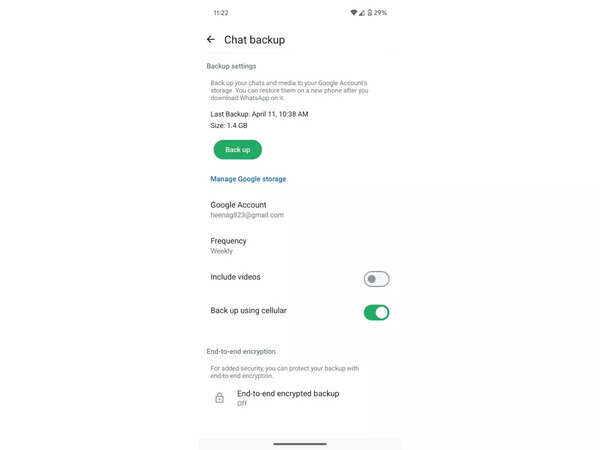
Open WhatsApp > Settings > Chats > Chat Backup. Look for the date and size of the “Last Backup.” If it’s older than your selected frequency, something is wrong.
What happens if I change my phone number but keep the same device?
Your backups remain tied to your Google Drive or iCloud account, not your phone number. When you change your number in WhatsApp settings, the app will ask if you want to restore from the existing backup. Say yes.
Can someone else restore my backup if they have my cloud password?
Yes—unless you enable End-to-End Encrypted Backup. That’s the single most important security feature in this entire guide.
Final Thoughts & Your Call to Action
I’ve restored WhatsApp chats from a dead phone, a stolen tablet, and even a corrupted SD card. Every time, the difference between panic and relief was a working whatsapp chat backup made days or weeks earlier.
Here’s what I want you to do right now, in less than two minutes:
- Open WhatsApp > Settings > Chats > Chat Backup.
- Check the date of your last backup. If it’s over a week ago, tap Back Up Now.
- Scroll down and tap End-to-End Encrypted Backup. Turn it on.
- Leave a comment below: What’s the one chat you’d be devastated to lose?
If you found this useful, share it with a friend who still thinks “the cloud just does it automatically.” And if you want to go deeper, read my guide on how to export and search your WhatsApp data like a pro (coming next week).
Your memories are worth ten minutes of setup. Don’t wait for a ferry accident to remind you.
Have a backup horror story or a clever trick I missed? Let me know in the comments—I read every single one.
Read More – Geekafterdark





Pingback: WhatsApp Not Sending Messages? Fix Guide (2026) - Geek After Dark
Pingback: Instagram Keeps Crashing on Android? 9 Fixes That Work (2026) - Geek After Dark