

WiFi Connected But No Internet?
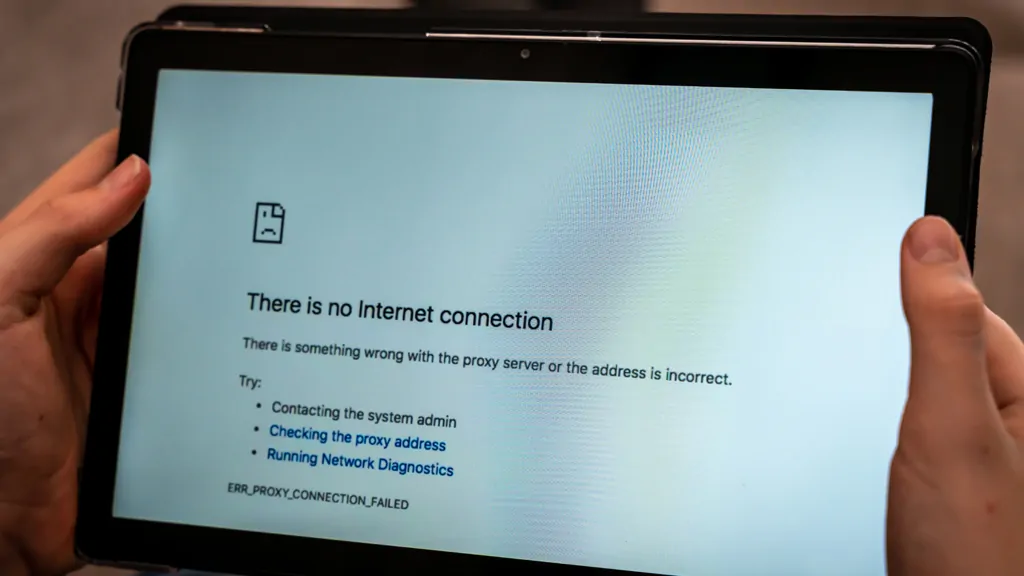
You glance down at your laptop. The Wi-Fi icon is solid—full bars, no warning triangle. Everything looks perfect. Yet, when you open a browser, you are met with nothing but spinning loaders and error messages. You see WiFi Connected But No Internet.
If this scenario sounds painfully familiar, you are not alone. A recent CNET survey found that a staggering 86% of US adults have experienced Wi-Fi disconnections or signal drops. This “WiFi Connected But No Internet” limbo is one of the most frustrating tech issues in 2026.
But here is the good news: in over 80% of cases, the solution takes less than 15 minutes. According to network fault statistics, the majority of these issues can be solved with a few targeted commands.
Let’s move past the generic advice. Here are 10 real, researched fixes for 2026 that will actually solve your connectivity crisis.
Fix 1: The “Real” Power Cycle (Wait 60 Seconds)
You have heard “turn it off and on again” a thousand times. But you are probably doing it wrong.
The key is not just restarting—it is draining residual charge from your modem and router. If you simply unplug and plug back in immediately, capacitors still hold enough charge to keep corrupted routing tables alive.
- Unplug both your modem and router from power.
- Disconnect all Ethernet cables.
- Wait a full 60 seconds (count slowly).
- Plug in the modem first. Wait for all its lights to stabilize (PON/DSL light solid).
- Then plug in the router. Wait 2-3 minutes.
- Finally, restart your device.
This method clears the hardware’s internal memory, forcing a fresh handshake with your ISP.
Fix 2: Run the 8.8.8.8 Ping Test
The “Connected But No Internet” message often lies. Sometimes, your internet is working perfectly, but the DNS (Domain Name System)—the phonebook of the internet—is broken.
To know which problem you have, run this quick test:
- Open Command Prompt (Windows) or Terminal (Mac).
- Type:
ping 8.8.8.8and press Enter.
- If you get replies: Your internet is alive. The problem is DNS.
- If you get “Request timed out”: Your connection is truly dead. Skip to Fix 5.
Fix 3: Flush the DNS Cache
If the ping test worked, your ISP’s DNS servers might be giving you bad directions. A corrupted local cache is one of the most common causes of this error.
Clearing it forces your PC to ask for fresh directions.
- Windows: Open Command Prompt as Admin →
ipconfig /flushdns - macOS:
sudo dscacheutil -flushcache; sudo killall -HUP mDNSResponder - Linux:
sudo systemd-resolve --flush-caches
Once flushed, try loading a website again. Often, this is the only fix you need.
Fix 4: Switch to a Public DNS (2026 Update)
In 2026, relying on your ISP’s default DNS is a risk. Major DNS outages are becoming more frequent. In January 2026, a flaw in the DNS client service caused global reboots across thousands of Cisco switches, disrupting networks worldwide. Even Cloudflare suffered a significant outage in February 2026 due to a BGP routing change.
To bypass ISP issues, switch to a reliable third-party DNS:
- Google Public DNS:
8.8.8.8and8.8.4.4 - Cloudflare:
1.1.1.1and1.0.0.1 - For IPv6 networks: Google offers
2001:4860:4860::8888and2001:4860:4860::8844
How to change it: Go to your network adapter settings > IPv4 Properties > “Use the following DNS server addresses.”
Fix 5: Check Your WAN IP (The ISP Trap)
If your router cannot get a public IP address from your ISP, you will have Wi-Fi signal but no exit to the internet.
Login to your router (usually 192.168.1.1 or 192.168.0.1). Look for the WAN IP address.
- If it starts with 192.168.x.x, 10.x.x.x, or 169.254.x.x: Your router is not getting a public IP. This often means an ISP outage or a MAC address lock.
The Fix: Unplug your modem for 10 minutes. This often forces your ISP to release the old IP lease. If that fails, call your ISP and ask them to “re-provision the modem.”
Fix 6: The IPv6 Shutdown (Wi-Fi 7 & 6E Bug)
This is a 2026-specific fix. As home networks upgrade to Wi-Fi 6E and Wi-Fi 7, a strange bug has emerged. Many users report that IPv6 (the newer internet protocol) is failing, causing a “No Internet” error even though IPv4 is working.
According to TP-Link community forums, users with Wi-Fi 7 routers like the Archer BE230 have experienced the “IPv6 stack losing its global address frequently,” resulting in dropped connections.
The Fix: Temporarily disable IPv6 on your device.
- Windows: Settings > Network & Internet > Advanced Network Settings > More Adapter Options. Right-click Wi-Fi > Properties > Uncheck “Internet Protocol Version 6 (TCP/IPv6).”
If your internet starts working immediately, you know the culprit. Keep IPv6 disabled until your router manufacturer releases a firmware patch.
Fix 7: Kill the VPN (Split Tunnel Issues)
Corporate VPNs are notorious for causing the “Connected but No Internet” loop. Often, the VPN client gets stuck trying to force all traffic through a tunnel that is currently down.
The Fix:
- Disconnect your VPN completely.
- Try loading a website.
- If it works, check your VPN’s “Split Tunneling” settings. In 2026, most modern VPNs allow you to send only work traffic through the tunnel, leaving your regular browsing on your local internet connection.
Fix 8: The Network Reset (Nuclear Option)
If nothing else works, it is time to let Windows fix itself. The “Network Reset” feature completely removes and reinstalls all your network adapters and sets the TCP/IP stack back to factory defaults.
- Go to Settings > Network & Internet > Advanced Network Settings.
- Click Network Reset.
- Click Reset Now and confirm.
- Your PC will restart in 5 minutes.
Note: You will need to re-enter your Wi-Fi passwords after this.
Fix 9: Windows Insider Builds (The 2026 Bug)
Are you running a Windows Insider Preview build? In February 2026, multiple users reported that a specific “Quality of Life” update completely broke internet access, leaving them connected to Wi-Fi with no data flow.
If you recently updated and lost internet:
- Go to Settings > Windows Update > Update history.
- Click Uninstall updates.
- Remove the most recent “Preview” or “Quality of Life” update.
- If you cannot uninstall, leave the Windows Insider Program entirely.
Fix 10: The DNS Client Service (Error 5)
A unique Windows 11 bug has emerged in 2026 where the DNS Client service fails to start, giving an “Error 5: Access Denied.” When this happens, your PC cannot resolve any domain names, making the internet unusable.
The Fix:
- Open Command Prompt as Administrator.
- Run:
netsh winsock reset - Run:
netsh int ip reset - Run:
sc config Dnscache start= auto - Restart your PC.
This resets the permissions on the core network services.
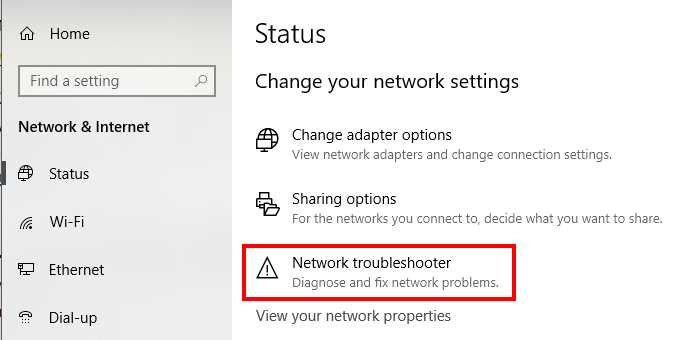
2026 Comparison: WiFi Connected But No Internet
| Issue | Past (2019-2023) | 2026 Reality |
|---|---|---|
| Primary Cause | Router crashes | DNS outages & IPv6 conflicts |
| Main Fix | Restart router | Flush DNS & switch to 8.8.8.8 |
| New Problem | Wi-Fi 5 congestion | Wi-Fi 7 MLO instability |
| New Threat | Local malware | Windows Insider update loops |
Key Insights from 2026
- DNS is the new bottleneck. Major providers like Cloudflare and Google are experiencing more frequent micro-outages. Always have a backup DNS configured.
- Wi-Fi 7 is unstable. The Multi-Link Operation (MLO) feature is causing severe packet loss and IPv6 drops. If you own a new router, check for firmware updates weekly.
- ISPs are losing control. Tools like ThousandEyes now allow users to see if an outage is truly global or just their house. Don’t waste an hour troubleshooting if the ISP is down.
Frequently Asked Questions (FAQ)
Why does my WiFi Connected But No Internet on my phone but works on my laptop?
This suggests an IP conflict or a device-specific cache issue. Forget the network on your phone, restart the device, and reconnect. Also, check if your phone has a private DNS setting (like dns.google) that might be blocked.
Can a Windows update really cause “No Internet” access?
Yes. As seen in Fix 9, Windows Insider builds in 2026 have been flagged for breaking the network stack. Always create a restore point before major feature updates.
Is IPv6 safe to disable permanently?
For home users, yes. The world still runs primarily on IPv4. Disabling IPv6 is a safe troubleshooting step and does not expose you to security risks.
How do I know if my ISP is blocking me?
Look for an APIPA address (169.254.x.x) on your router status page. This means your router is talking to itself because the ISP is not giving it a real address. Call your provider.
Ready to fix your connection?
You have the tools. You have the commands. Now go tackle that frustrating error. Did a specific fix work for you? Drop a comment below to let other readers know which solution saved your day, or share this guide with a friend who is still stuck offline!
Read More – Geekafterdark