
The Spinning Wheel of Doom: Why Your PC Refuses to Update
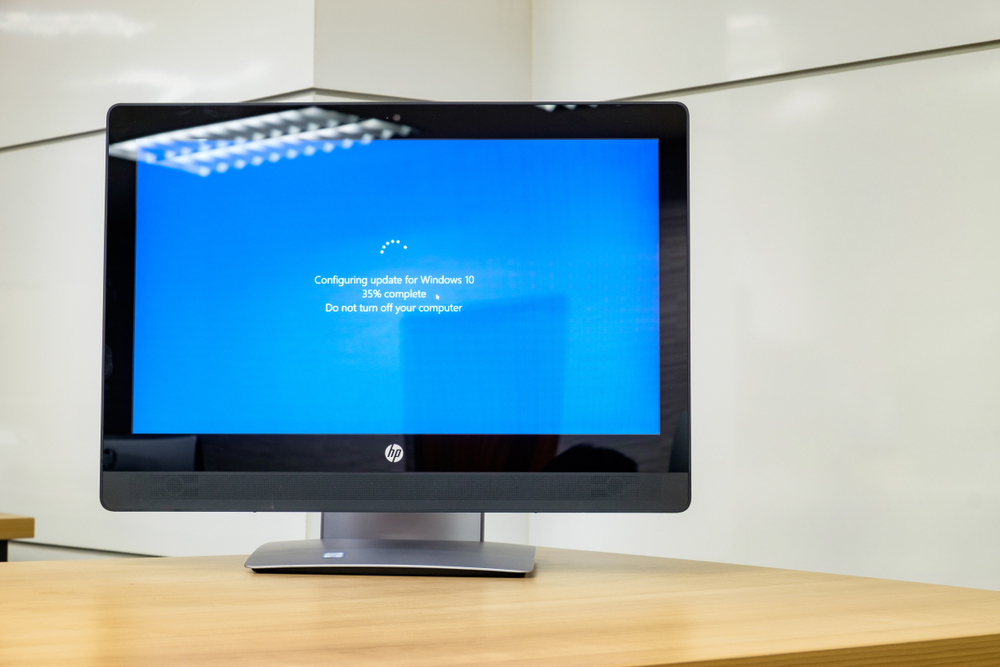
You click “Check for updates.” The progress bar appears. Then… nothing. Your computer stares back at you, frozen at an ominous 37%. You wait an hour. Two hours. Overnight. Still nothing. And you wonder is your Windows Update Stuck?
We have all been there. In a world where Windows updates are critical for security and stability, a frozen update feels like being locked out of your own digital home. If your Windows update stuck issue is driving you up the wall, don’t reach for the sledgehammer just yet. As someone who has recovered dozens of “bricked” systems from update loops, I’ve learned that the fix is usually simpler than the panic.
Most guides will tell you to “just wait” or “run the troubleshooter.” But deep update freezes are often more subtle. From corrupted cache files to driver conflicts and even underlying system image corruption, the causes can vary widely. This guide will walk you through the psychology of the freeze, why specific percentages like 0%, 46%, and 99% matter, and the exact sequence of fixes that works when nothing else does.
First, Is It Really Stuck, or Is It Just Slow?
Before you start force-shutting down your PC, you need to answer one question: Is your update actually frozen, or is it just taking its sweet time?
Feature updates, especially major ones like the Windows 11 2025 Update (version 24H2), can take over an hour to complete. The process is working silently in the background, even if the progress bar looks static.
The 10-Second Check: Open Task Manager (Ctrl + Shift + Esc) and check your CPU and Disk usage. If you see any activity—numbers fluctuating above 0%—your system is still working. Let it run for at least another hour before intervening. If there is zero disk, CPU, or network activity for 30–60 minutes, it is safe to assume the process is frozen and you can proceed.
The “Hidden” Killers: Why Your Update Is Actually Stuck
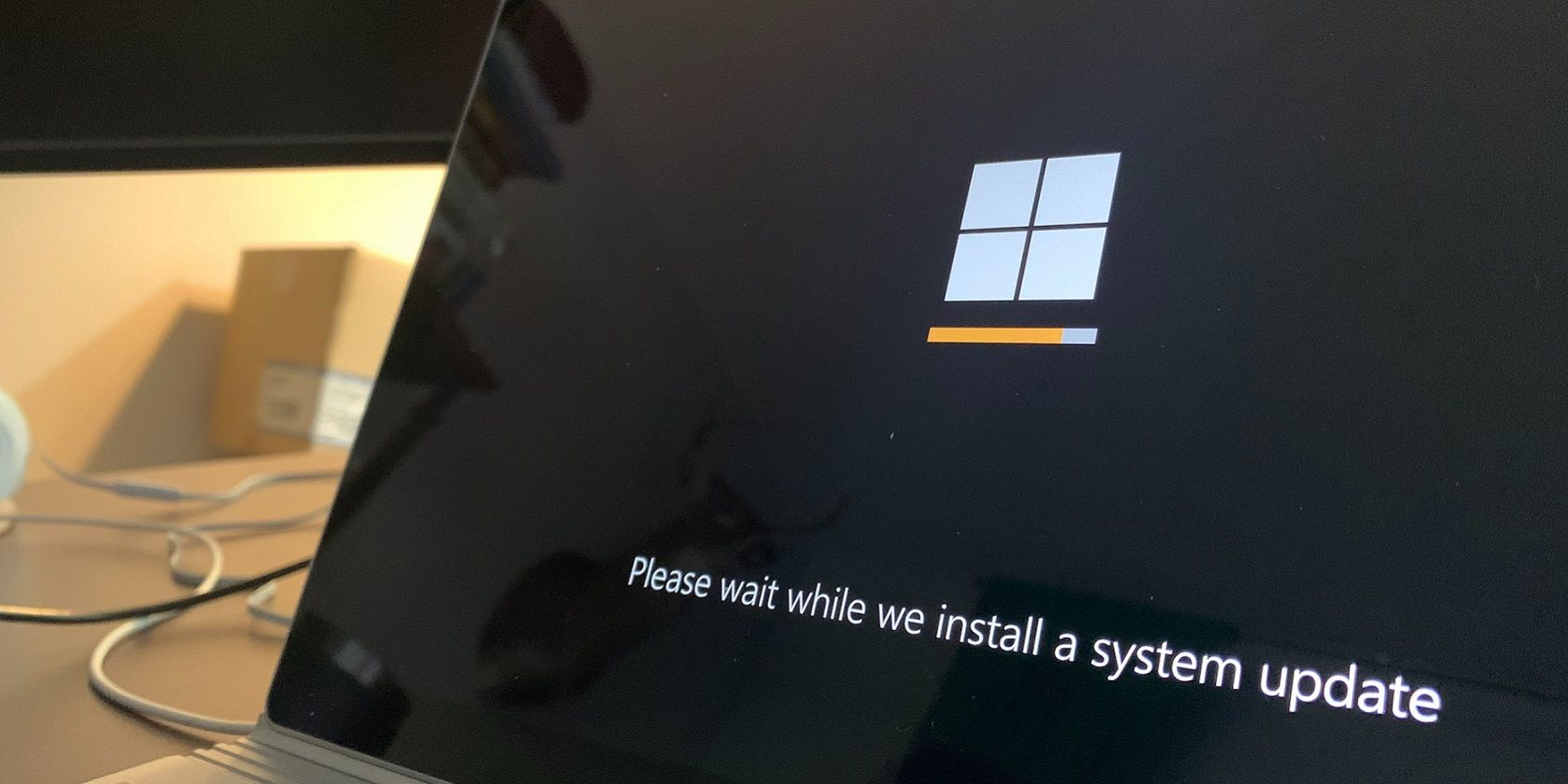
We often assume that if the progress bar is moving, everything is fine. That is a dangerous assumption. The specific percentage where your Windows update stuck issue occurs can tell you exactly what’s wrong.
Decoding the Stuck Percentages: A Fresh Perspective
| Stuck Percentage | Likely Culprit | What’s Actually Happening |
|---|---|---|
| 0% | Network or Cache | Windows can’t download the update files. The SoftwareDistribution folder might be corrupted, or your internet connection is unstable. |
| 46% | Update Servers | The setup is checking for newer updates online. A slow or blocked connection to Microsoft’s servers can cause an indefinite hang. |
| 99% | Finalizing | The files are installed, but Windows is stuck applying settings, configuring drivers, or creating a restore point. |
| 100% | Driver Conflict | The update is done, but a driver is preventing the final reboot or causing a rollback loop. |
The key takeaway? The percentage tells a story. A Windows update stuck at 0% is a download problem. A freeze at 99% is an installation problem. Treat them differently.
The Easy Wins: First-Aid for a Frozen Update
Before we dive into command-line wizardry, let’s try the simple stuff that surprisingly works.
The Proper Restart (Not Just a Reboot)
A simple restart often clears temporary update locks. But don’t just click “Restart” in the Start menu.
The Advanced Fix:
- Press and hold the Power Button on your PC for 10–15 seconds until it fully shuts down.
- Unplug the power cord (or remove the battery if it’s removable). Wait 60 seconds.
- Plug it back in and turn it on. Go to Settings > Windows Update > Check for updates. Windows can often resume interrupted downloads automatically.
The Offline Upgrade Trick (For Feature Updates)
If you’re trying to upgrade to a new version of Windows (like from 23H2 to 24H2) and it’s stuck, this is a lifesaver.
- Download the latest Windows 11 ISO from Microsoft’s official website.
- Double-click the ISO to mount it, then run
setup.exe. - When it asks, “Download and install updates (recommended),” choose “Not right now.”
- Proceed with the upgrade. This bypasses the online update check that often hangs at 46%, but the upgrade will still complete successfully.
The “Clean Slate” Method: Resetting the Update System
If the easy wins didn’t work, it’s time to get our hands dirty. The most common reason for a Windows update stuck scenario is a corrupted update cache.
The Manual Reset (The Real Way)
Most guides tell you to clear the SoftwareDistribution folder. But they miss the why and the how. Corrupted update caches are one of the most common causes of the 0% or 100% freeze. Resetting the update services forces Windows to rebuild its download database.
The Step-by-Step Fix:
- Press
Win + Xand select Terminal (Admin) or Command Prompt (Admin). - Stop the update services by typing each command and pressing Enter:textnet stop wuauserv net stop cryptSvc net stop bits net stop msiserver
- Now, rename the cache folders. This is the crucial part most people skip:textren C:\Windows\SoftwareDistribution SoftwareDistribution.old ren C:\Windows\System32\catroot2 Catroot2.old
- Restart the services:textnet start wuauserv net start cryptSvc net start bits net start msiserver
- Close the terminal and restart your PC. Windows will create fresh, uncorrupted update files.
The Deep Clean: Fixing System File Corruption
Sometimes, the problem isn’t the update cache—it’s Windows itself. Corrupted system files can prevent updates from completing at any stage.
This is where the DISM (Deployment Image Servicing and Management) and SFC (System File Checker) tools come in. These are built-in tools that scan and repair the core of Windows using official files from Microsoft servers.
The Fix:
- Open Command Prompt as Administrator.
- First, run the DISM tool to repair the Windows system image:textDISM /Online /Cleanup-Image /RestoreHealthThis may take 10-15 minutes and requires a stable internet connection.
- Once DISM is complete, run the System File Checker:textsfc /scannowThis will scan for and repair any remaining corrupted system files.
- Restart your PC and try the update again.
When Your PC Won’t Boot: Escaping the Update Loop
This is the scariest scenario. You turn on your PC, and you’re stuck on “Working on updates” or “Getting Windows ready.” You can’t even get to your desktop. If your Windows update stuck issue has escalated to a boot loop, don’t panic.
The Hard Shutdown Dance for Windows Update Stuck
- Restart your computer. Just as Windows attempts to load (spinning dots), press and hold the Power Button for 5-8 seconds to force a shutdown.
- Do this 2-3 times in a row. This triggers Windows to boot into the Recovery Environment (WinRE) automatically.
Uninstall the Problem Update
Once in the Recovery Environment:
- Select Troubleshoot > Advanced Options > Uninstall Updates.
- Choose Uninstall latest quality update (for smaller monthly patches) or Uninstall latest feature update (for major version upgrades).
- Follow the prompts to roll back the problematic patch. This is often the only way to break a loop caused by a faulty cumulative update.
The “Hidden” Culprit: Driver Conflicts and Third-Party Interference
We have to talk about the scary stuff. Sometimes, a Windows update stuck issue is not Windows’ fault at all.
Shadow Conflicts that affect Windows Update
If you have third-party antivirus software (like McAfee, Norton, or Avast), it can hook into the update service and block file operations. The same goes for VPNs and aggressive firewalls.
The Fix:
- Temporarily disable your third-party antivirus and VPN before running Windows Update.
- Unplug all non-essential USB devices. A faulty driver for a printer or external drive can sometimes cause the finalization stage to hang indefinitely.
Driver-Specific Stalls
Error codes like 0x80070103 are a dead giveaway. This error usually indicates a conflict between the current driver and the one Windows is trying to install—often because the incoming one is an older version.
The Fix:
- Use the official Microsoft Show/Hide Tool to hide problematic driver updates so Windows stops trying to install them.
A Quick Reference Guide (The Cheat Sheet)
When you’re staring at a frozen progress bar and your blood pressure is rising, you don’t have time to read 1,500 words. Save this checklist:
- [ ] Check Task Manager for activity (Is it truly frozen?)
- [ ] Perform a hard shutdown (Hold power button for 10 seconds).
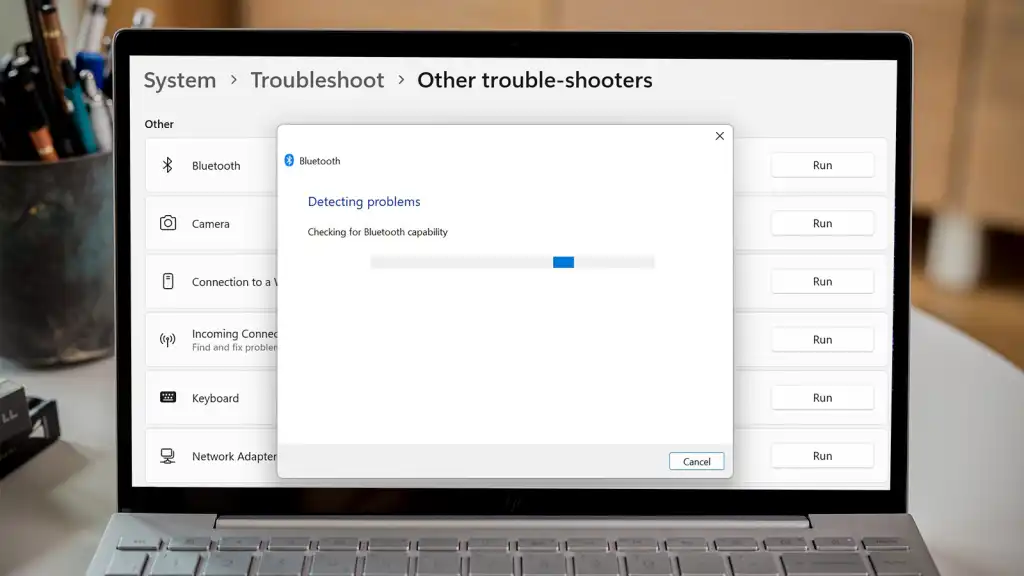
- [ ] Run the built-in Windows Update Troubleshooter (Settings > System > Troubleshoot).
- [ ] Clear the SoftwareDistribution cache (The manual reset method above).
- [ ] Run DISM and SFC commands (Fix underlying corruption).
- [ ] Boot into Recovery Environment (WinRE) if you can’t reach the desktop.
- [ ] Uninstall the latest quality update from WinRE.
- [ ] Temporarily disable third-party antivirus and VPN.
The Nuclear Option: Repair Install (In-Place Upgrade)
If absolutely nothing else works, you’re not out of options. You can perform a Repair Install using the Windows ISO. This is like reinstalling Windows but keeping all your personal files and apps. It fixes corrupted system files without wiping your data.
The Fix:
- Download the Windows 11 ISO from Microsoft’s website.
- Mount it and run
setup.exe. - On the “Ready to install” page, ensure that “Keep personal files and apps” is checked.
- Click Install. This will take 30-60 minutes but will completely refresh your Windows installation.
Conclusion: Don’t Let the Update Win
Windows updates are a marvel of modern engineering, but they are also a complex chain of dependencies. One corrupted cache, one conflicting driver, or one broken system file can bring the entire process to a halt.
The key takeaway here is that a Windows update stuck issue is rarely a permanent death sentence. It is usually a negotiation. By understanding whether the problem is your network, your cache, your drivers, or your system files, you stop being a passive victim and become an active troubleshooter.
Next time the progress bar freezes, don’t panic. Walk through the steps. You have the tools.
Let’s Troubleshoot Together
Did these steps work for you? Or did you discover a weird fix that I missed (like disabling a specific driver or using a particular command)?
Drop a comment below with your experience. If you are still stuck, describe exactly what happens (e.g., “Stuck at 99% with high disk usage”) and I will personally help you debug it. And if you found this useful, share it with that friend who always complains about their “broken computer” in the group chat.
Happy (and glitch-free) updating.
Read More – Geekafterdark