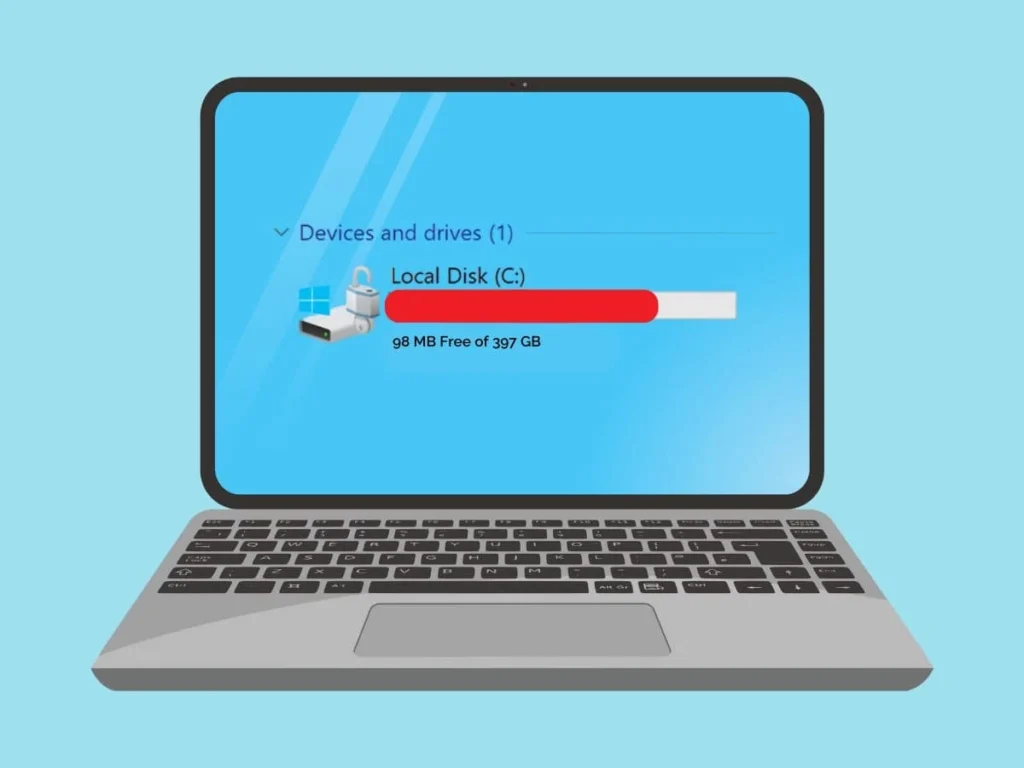

You haven’t installed any new games. You haven’t downloaded any massive video files. Yet somehow, that little blue bar on your C: drive has turned a terrifying shade of red, and Windows keeps nagging you about low disk space. It feels like magic—but not the good kind. Here’s the truth: Your C drive isn’t “full for no reason.” There’s always a reason. Windows just happens to be exceptionally good at hiding it from you. The problem is that C Drive Full for No Reason is rarely a mystery once you know where to look.
Behind the scenes, invisible system files, update archives, hibernation data, and virtual memory are quietly devouring your storage one gigabyte at a time.
I’ve been there myself, staring at a 512GB SSD with barely 15GB free, convinced I’d been hacked or that Windows had simply lost its mind. Spoiler: Neither was true. The space was there the whole time—just hidden.
After years of troubleshooting this exact issue across dozens of machines, here’s your complete, battle-tested guide. No fluff. No guesswork. Just what’s actually happening and how to fix it.
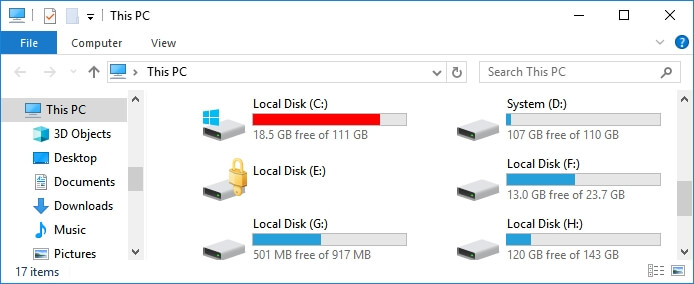
The Culprits: Why Your C Drive Looks Full (But You Can’t See Why)
Before we start deleting things, it helps to understand the landscape. You’re not crazy, and your computer isn’t broken. What you’re experiencing is actually a combination of Windows design decisions and invisible data accumulation.
Here’s what’s really taking up space:
| Hidden Culprit | Typical Size | Where It Lives | Can You Delete It? |
|---|---|---|---|
| WinSxS Component Store | 5–15GB+ | C:\Windows\WinSxS | (safely, using tools) |
| Hibernation File (hiberfil.sys) | 40–75% of RAM | C:\hiberfil.sys | (if you don’t use hibernate) |
| Virtual Memory (pagefile.sys) | 1–3× RAM | C:\pagefile.sys | (resize or move, don’t delete) |
| System Restore Points | 3–10GB+ | C:\System Volume Information | (manage, don’t disable blindly) |
| Windows Update Cache | 2–10GB+ | C:\Windows\SoftwareDistribution | (safe to clean) |
| Old Windows Installation | 10–25GB | C:\Windows.old | (after 10 days) |
| AppData & Roaming Data | 5–50GB+ | %APPDATA% | (review carefully) |
Let’s go through each one.
1. WinSxS: The Folder That Lies About Its Size
If you’ve ever opened C:\Windows\WinSxS and seen a folder size that made your heart skip a beat, you’re not alone. The WinSxS (Windows Side-by-Side) folder is Windows’ component store—it keeps backup versions of system files so updates can be rolled back and system repairs can happen seamlessly.
Here’s the twist: That massive number File Explorer shows you is misleading. Windows uses something called hard links to make files appear in multiple places without actually duplicating the data. When Explorer calculates the folder size, it counts each hard link separately, making WinSxS look much larger than it really is.
How to check your actual WinSxS size:
Open PowerShell as Administrator and run:
text
Dism.exe /Online /Cleanup-Image /AnalyzeComponentStore
Look for “Actual Size of Component Store” in the output. That’s your real footprint. On most healthy systems, it should be 5–10GB.
How to clean it safely:
If the analysis recommends cleanup, run:
text
Dism.exe /Online /Cleanup-Image /StartComponentCleanup
For deeper cleaning (but note: you lose the ability to uninstall updates), add the /ResetBase parameter:
text
Dism.exe /Online /Cleanup-Image /StartComponentCleanup /ResetBase
This can free up 3–8GB of space. Never delete files from WinSxS manually—that’s how you break Windows permanently.
2. hiberfil.sys: The Hidden Giant Sleeping on Your Drive
On a laptop with 16GB of RAM, hiberfil.sys can occupy up to 12GB of your C drive. On a desktop with 32GB? That’s 24GB. The command center gets paid, but your storage pays the price.
The hibernation file stores your entire system state when the computer goes into hibernation mode. But here’s the catch: Even if you never use hibernate, Windows keeps the file unless you explicitly disable it through the command line. Unchecking “hibernate” in Power Options isn’t enough.
How to disable hibernation and reclaim that space:
Open Command Prompt as Administrator and run:
text
powercfg.exe /hibernate off
That’s it. The file disappears instantly, and you’ll reclaim gigabytes of space.
But what if you actually use hibernate? You can shrink the file instead of removing it entirely. By default, it uses 75% of your RAM. You can reduce it to 50% or 40% with:
text
powercfg.exe /hibernate /size 50
Just keep it above 40% of your RAM to avoid hibernation failures.
3. pagefile.sys: The Essential Evil
pagefile.sys is Windows’ virtual memory file. When your physical RAM fills up, Windows temporarily stores less-active data on your hard drive to keep things running smoothly. Without it, memory-heavy tasks would crash your system.
But by default, Windows sets this file to automatically grow based on demand—and it doesn’t always shrink back down. I’ve seen pagefile.sys balloon to 30–40GB on machines that run memory-intensive applications.
Your options:
Option 1: Move it to another drive
This is my preferred approach. It keeps the performance benefits of virtual memory while freeing up your C drive:
- Open System Properties → Advanced → Performance Settings → Advanced → Virtual Memory → Change.
- Uncheck Automatically manage paging file size for all drives.
- Select C: → No paging file → Set.
- Select D: (or any other drive with enough space) → System managed size → Set.
- Restart.
Option 2: Set a smaller custom size
If you don’t have another drive, set a fixed upper limit. A good rule of thumb: 1.5 to 3 times your physical RAM.
4. The Visual Detective: Disk Space Analyzers
Sometimes, the fastest way to solve “C drive full for no reason” is to look for yourself. Windows’ built-in tools are fine, but they don’t show you the whole picture. That’s where disk space analyzers come in.
Here’s my personal comparison after testing them all:
| Tool | Speed | Visualization | Best For |
|---|---|---|---|
| WizTree | Instant (seconds) | Tree map + tree view | Speed demons; reads MFT directly |
| WinDirStat | Moderate (minutes) | Classic treemap | Free, open-source, familiar |
| TreeSize | Fast | Clean folder hierarchy | Professional reports; network drives |
| SpaceSniffer | Fast | Treemap layout | Portable; no install needed |
If you only try one tool, make it WizTree. It reads the NTFS Master File Table (MFT) directly, scanning an entire 1TB drive in seconds rather than minutes. The visual treemap shows you instantly which folders are the real space hogs—no guesswork required.
One time, WizTree helped me uncover 45GB of forgotten iPhone backups hidden in C:\Users\[Me]\AppData\Roaming\Apple Computer\MobileSync. I never would have found those manually.

5. System Restore Points & Shadow Copies
System Restore is a lifesaver—until it quietly consumes 10–20% of your drive and you forget it’s there. Windows automatically creates restore points before updates, driver installations, and software changes. Each point stores system files and settings, and they add up fast.
To check how much space System Restore is using:
- Right-click This PC → Properties → System Protection.
- Select your C: drive and click Configure.
- Look at Current Usage.
You can safely reduce the maximum allowed space to 5–10GB without losing the ability to restore your system. Or delete all but the most recent restore point for an immediate space boost.
The 5-Minute Quick Fix (Before You Do Anything Else)
Run these two built-in Windows tools first. They’re safe, easy, and often recover 5–20GB instantly.
A. Storage Sense
Open Settings → System → Storage, toggle Storage Sense on, click it to configure, and set it to run weekly, cleaning temporary files and old Recycle Bin contents. Then click Run Storage Sense now.
Microsoft’s own testing shows Storage Sense can free up 8–15GB of redundant space on average.
B. Disk Cleanup (with System Files)
This is the deep cleaner most people miss:
- Search for Disk Cleanup and open it.
- Select your C: drive.
- Click Clean up system files (this is the crucial step).
- Select all the grayed-out options you see—especially Windows Update Cleanup, Delivery Optimization Files, Temporary Files, and Previous Windows Installation(s).
- Click OK.
I once freed 27GB from a single Disk Cleanup session on a client’s machine. That’s not a typo.
The Long-Term Fix: Keep It From Happening Again

Cleaning once is good. Setting up systems so you never have to panic again is better.
Migrate User Folders Off C:
Go to File Explorer → right-click Desktop (or Documents, Downloads, Pictures, Music, Videos) → Properties → Location → Move, and point each to a corresponding folder on D: or another drive. This instantly moves your personal files off the system drive while keeping everything accessible in the same places.
Redirect App Installations:
Most programs default to C:\Program Files. When installing new software, choose Custom Installation and change the path to D:\Programs or another drive. This small habit saves enormous C drive space over time.
Use Portable Versions When Possible:
Many apps offer portable versions that run from any folder without installation. For tools you don’t use daily, portable options keep your system drive clean.
Tweak Windows Update Settings:
Go to Settings → Windows Update → Advanced Options → Delivery Optimization → Advanced Options and limit the bandwidth Windows uses to share updates. This reduces the size of downloaded update files stored on your system.
Schedule Regular Maintenance:
Enable Storage Sense to run weekly. Set a calendar reminder to run Disk Cleanup once a month. Small efforts, consistently applied, prevent the crisis altogether.
What NOT to Do (Please Read This)
A few things I’ve seen people do that they regretted:
- Don’t delete or manually move WinSxS, System32, or ProgramData. These are essential Windows components.
- Don’t disable pagefile.sys completely. Your system will crash under memory pressure. Resize or move it instead.
- Don’t use registry cleaners. They promise speed but often break applications.
- Don’t buy “PC cleaner” software. Most are snake oil. Windows’ built-in tools do the job for free.
Final Thoughts
When your C drive is full for no reason, it’s not magic—it’s just Windows being a bit too good at hiding its own maintenance. The WinSxS folder exaggerates its size, hibernation and page files silently grow, and update leftovers pile up in corners you never check. But now you know exactly where to look.
The techniques I’ve shared here have saved me (and dozens of clients) from unnecessary hardware upgrades, expensive software, and hours of frustration. The best part? You don’t need any special tools beyond what Windows already gives you—though WizTree is a delightful bonus.
So take a deep breath, run that Disk Cleanup, and watch your storage come back to life.
Frequently Asked Questions (FAQ)
Q1: Why is my C drive full when I haven’t installed anything new?
A: The most common culprits are hidden system files: WinSxS component store (often 5–15GB), hiberfil.sys (40–75% of your RAM), pagefile.sys (virtual memory), Windows Update caches, and System Restore points. Use a disk space analyzer like WizTree to see exactly what’s taking up space.
Q2: Is it safe to delete everything in C:\Windows\Temp?
A: Yes, absolutely. The Temp folder exists specifically for temporary files. You can safely delete everything inside C:\Windows\Temp and %USERPROFILE%\AppData\Local\Temp. If any files are in use, Windows will simply skip them.
Q3: My C drive is red. How urgent is this?
A: Pretty urgent. A critically full C drive can prevent Windows from installing security updates, cause programs to crash, slow down your entire system, In severe cases, it can lead to system instability or boot failures. Address it as soon as you notice the warning.
Q4: Will cleaning my C drive delete my personal files like photos and documents?
A: Not if you stick to the safe methods outlined in this guide. Storage Sense, Disk Cleanup, and the WinSxS and hibernation commands target only system temporary files, update caches, and unused system components—not your personal data. However, always keep important files backed up before any major system maintenance.
Q5: How often should I clean my C drive?
A: Enable Storage Sense to run weekly for automatic cleanup. Run Disk Cleanup manually once a month. Run the WinSxS DISM cleanup every 2–3 months. This maintenance schedule prevents space crises and keeps your system running smoothly.
Q6: I ran Disk Cleanup but barely freed any space. What now?
A: You may have missed the critical step: clicking Clean up system files. Without this button, Disk Cleanup only removes basic user temporary files. The system files option includes Windows Update Cleanup, which is often where the bulk of recoverable space lives.
Have you found a sneaky space hog that I missed? Drop a comment below—I’d love to hear what’s been eating your storage, and I’ll update the guide to help others facing the same issue.
Read More – Geekafterdark