
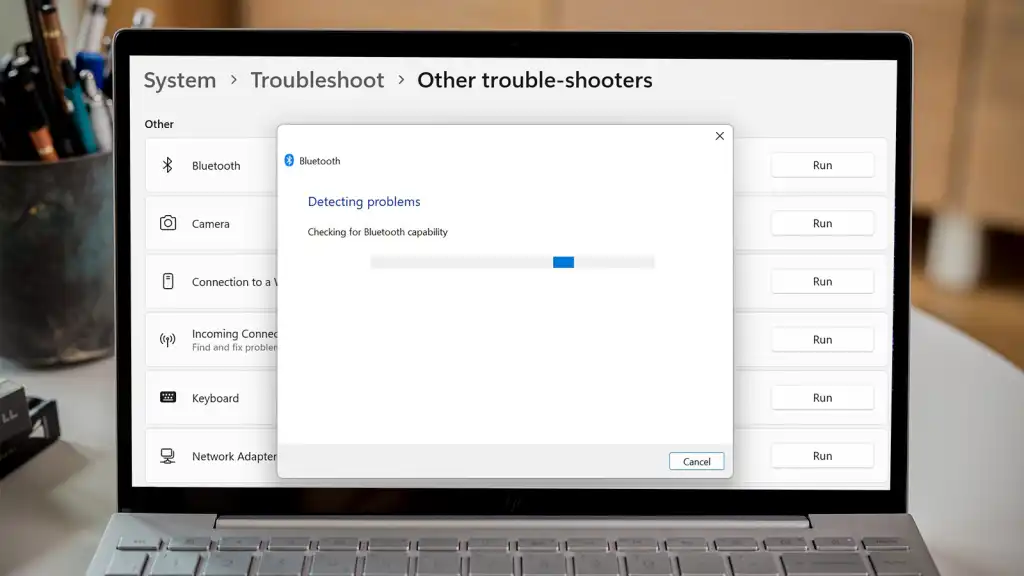

Introduction
It always happens at the worst possible moment. You are five minutes into a high-stakes Zoom call, or you have just settled into your perfect gaming chair, and poof—your wireless mouse freezes. Your headphones go silent. You open Settings, and that familiar toggle is either grayed out or has vanished completely. You search online for “Bluetooth not working in Windows” and find the same recycled advice: Update your drivers. Restart your PC. You do it. Nothing changes.
I have been there. After spending three days troubleshooting a Dell XPS where Bluetooth would die every time the laptop went to sleep, I realized that most “fixes” miss the real culprit: Windows’ aggressive power management and corrupted driver stacks.
Let’s skip the generic fluff. Here is the real diagnostic tree to get your Bluetooth back—for good.
The Hierarchy of Bluetooth Grief (A Diagnostic Map)

Before you click anything, understand this: Bluetooth failure in Windows 10 and 11 usually falls into one of three buckets. Use this table to self-diagnose:
| Your Symptom | Likely Culprit | Time to Fix |
|---|---|---|
| Bluetooth toggle is missing entirely. | Driver crash or BIOS disabled the radio. | 5 minutes |
| Toggle is there, but finds no devices. | Service stack is hung or antenna is off. | 10 minutes |
| Connects, but audio stutters or mouse lags. | Wireless interference or USB port power saving. | 15 minutes |
| Works fine, then disappears after sleep. | Windows “Selective Suspend” bug. | 2 minutes |
The “Invisible Radio” Fix (No Toggle? No Problem)
If the Bluetooth icon is gone from your Action Center and the toggle is missing in Settings, Windows has lost communication with the physical adapter. Do not reinstall Windows yet.
1. Unhide the Ghost Device
Most guides tell you to check Device Manager. They forget to tell you to look for hidden devices.
- Right-click the Start button > Device Manager.
- Click View > Show hidden devices.
- Expand Bluetooth. If you see any faded (grey) icons, right-click them and select Uninstall device.
- Critical Step: Also expand Universal Serial Bus controllers. Look for “Generic USB Hub” or “Root Hub.” Right-click each > Properties > Power Management. Uncheck “Allow the computer to turn off this device to save power.”
Why this works: Bluetooth is physically a USB device internally. When Windows cuts power to the USB hub to save energy, it forgets to wake the Bluetooth radio up.
2. The “Hard Reset” That Actually Works
Software restarts are weak. You need to drain the latent power.
- Shut down your PC completely (do not use Restart).
- Unplug the power cord (and remove the laptop battery if it’s removable—rare these days).
- Press and hold the physical Power button for 30 full seconds.
- Plug back in and boot up.
This clears the electrostatic charge that often holds corrupted registers in the Bluetooth chipset. You would be shocked (pun intended) how often this fixes the “Bluetooth not working in Windows” issue when software fails.
The Driver Paradox (Newer Isn’t Always Better)
There is a dirty secret in PC manufacturing: Intel, Realtek, and Qualcomm release generic Bluetooth drivers monthly, but Dell, HP, and Lenovo take six months to certify them.
If you automatically updated your driver via Windows Update or a third-party tool, you might have the generic driver, not the OEM-customized one.
The Rollback Test
- Go to Device Manager > Bluetooth > Right-click your adapter (usually says “Intel Wireless Bluetooth” or “Realtek”).
- Go to Driver tab > Roll Back Driver (if available).
- If greyed out, click Uninstall Device > Check the box “Delete the driver software for this device.”
- Restart. Windows will reinstall the stock driver from its cache.
Personal Insight: I once had a ThinkPad that disconnected from my Sony XM5 headphones every 45 seconds like clockwork. Rolling back from the 2024 “Microsoft Update” driver to the 2022 Lenovo driver fixed it instantly. Never let Windows Update touch your Bluetooth stack.
The “Invisible Services” Fix
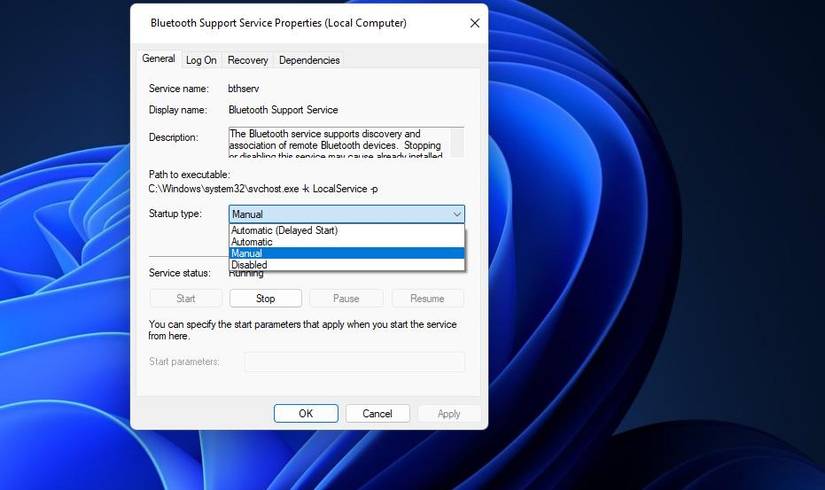
Sometimes, the radio works, but the dispatcher is broken. Bluetooth relies on two specific background services. If they crash, Windows stops talking to peripherals. That’s the common issue for Bluetooth Not Working in Windows
- Press
Win + R, typeservices.msc, hit Enter. - Find Bluetooth Audio Gateway Service.
- Find Bluetooth Support Service.
For each:
- If the status is not “Running,” click Start.
- Double-click the service > Set Startup type to Automatic (not Automatic-Delayed).
- Click Apply.
A corrupted service cache is often why your mouse pairs fine, but your speaker refuses to show up. Restarting these services brings the “discovery” ability back online.
The Frequency War (2.4 GHz Hell)
Here is a fresh perspective most tech blogs ignore: It is not you; it is your environment.
Bluetooth runs on the 2.4 GHz spectrum. So does Wi-Fi, microwave ovens, and USB 3.0 ports. If you have a cheap USB 3.0 flash drive plugged in next to a Bluetooth dongle, the electromagnetic interference from the USB 3.0 bus will actually jam the Bluetooth signal.
The Fix:
- Move your Bluetooth dongle to a USB 2.0 port (usually black or white plastic inside) as far from USB 3.0 ports (blue plastic) as possible.
- In your Wi-Fi router settings, change the 2.4 GHz channel to 1, 6, or 11—but avoid 1 if your Bluetooth mouse is stuttering.
- Better yet: Switch your PC to the 5 GHz Wi-Fi band (Settings > Network & Internet > Wi-Fi > Properties > Network band). This removes the spectrum collision entirely.
The Nuclear Option (But Keep Your Data)
If you have tried everything and Windows still refuses to cooperate, do not use “Reset This PC.” Try DISM and SFC.
Open Command Prompt as Administrator (Run as admin). Run these commands in order:
cmd
DISM /Online /Cleanup-Image /RestoreHealth
This repairs the Windows image itself. It is surprisingly effective at fixing corrupted Bluetooth stacks because the Bluetooth settings are tied to the system registry hive.
Wait for it to finish (100%), then run:
cmd
sfc /scannow
This fixes the system files. Reboot after it finishes. I have seen this resurrect “dead” Bluetooth adapters that Device Manager swore were working fine.
Conclusion: You Are Likely Fighting Power Management
Eighty percent of the time, when Bluetooth is not working in Windows, it is because the operating system is too aggressively trying to save your battery. Between USB Selective Suspend and hidden driver power settings, Windows often strangles the Bluetooth radio in its sleep.
Your cheat sheet:
- Missing toggle? Hard reset (30-second power button).
- No discovery? Check Bluetooth Support Service.
- Disconnects? Uncheck “Allow the computer to turn off this device.”
- Stuttering? Switch to 5 GHz Wi-Fi.
Stop reinstalling drivers on a loop. Work through the hierarchy above, and you will be wireless again in ten minutes.
Frequently Asked Questions (FAQ)
Q: Why does my Bluetooth keep disappearing after Windows Update?
A: Microsoft often pushes generic drivers that overwrite your PC manufacturer’s stable version. Use the Roll Back Driver option immediately after a feature update to prevent this.
Q: Can a VPN cause Bluetooth issues?
A: Indirectly, yes. Some VPNs (especially those with “kill switches”) modify your network adapter priorities, which can confuse the Bluetooth stack. Disable your VPN temporarily to rule it out.
Q: How do I tell if my Bluetooth is broken permanently (hardware failure)?
A: Open Device Manager. If the Bluetooth adapter has a yellow exclamation mark and shows “Error Code 43” or “Code 45” even after reinstalling drivers and the hard reset, the chip itself is likely dead. USB dongles cost $10 to fix this.
Q: Why does my Bluetooth work in Linux but not Windows?
A: This confirms the hardware is fine. The issue is strictly a Windows driver or registry corruption. Follow the DISM and SFC steps above—they are designed for exactly this scenario.
Q: Does Windows 11 handle Bluetooth better than Windows 10?
A: Yes, Windows 11 has native LE Audio (Low Energy) support, but ironically, it has more power management issues with legacy Bluetooth 4.0 devices. If you have older headphones, Windows 10 is actually more stable.
Ready to stop wrestling with cables?
If this guide saved you from buying a new adapter, drop a comment below about the weirdest Bluetooth glitch you have ever seen.
Have a specific issue with a Logitech mouse or Sony headset? Mention it below—I reply to every thread.
Read More – Geekafterdark



Pingback: How to Screen Record on PC and Mobile: The Ultimate 2026 Guide - Geek After Dark