
Introduction
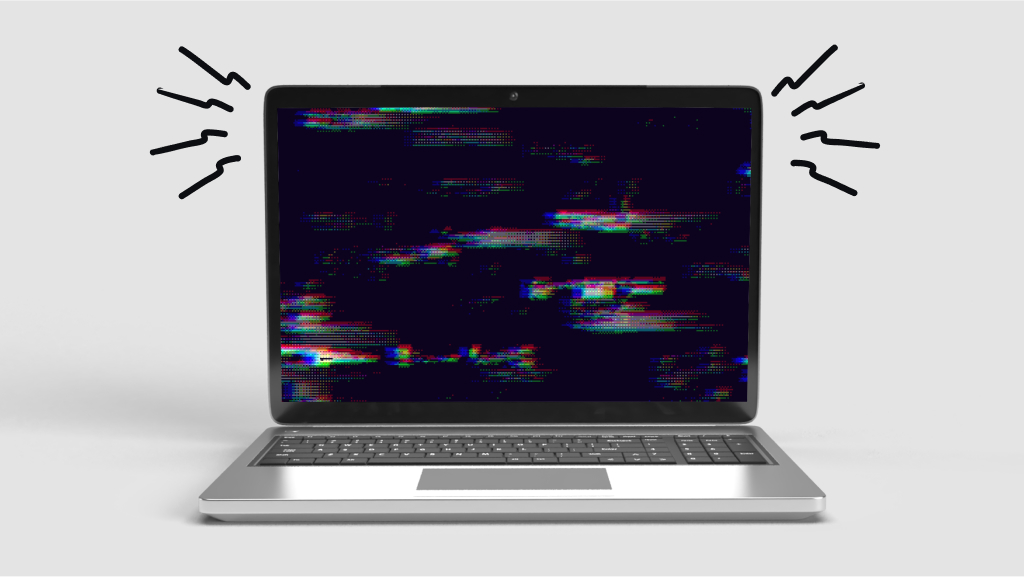
We have all been there. You are deep in a flow state—maybe finalizing a work presentation or grinding through the last level of a game—when suddenly, the display starts strobing like a bad nightclub. Your heart sinks. Is it the graphics card? Did I spill coffee on it six months ago? Before you start Googling the price of a new motherboard, take a breath. Laptop screen flickering is terrifying, but in my experience repairing hundreds of these machines, roughly 60% of cases are software-related (free fixes) or connection-based (cheap fixes). Only the remaining fraction requires a hardware transplant.
Today, we aren’t just listing generic fixes. We are diagnosing by behavior. How your screen flickers tells you exactly what is broken.
The “Flashing Cursor” vs. The “Full Blackout” (Read This First)

Most guides treat all flicker the same. That is a mistake. You need to look at your screen right now. What do you see?
- Type A (The Blink): The screen goes black for 1 second, then returns. Repeats randomly.
- Type B (The Ripple): Horizontal lines dance across the screen, like a VHS tape from the 90s.
- Type C (The Brightness Dance): The backlight pulses dim to bright, usually on battery power.
Your fix depends entirely on which type you have. Let’s break it down.
1. The Software Ghost: Driver Conflicts (Type A & B)
If your flickering started immediately after a Windows Update or a driver update, congratulations—your hardware is likely fine. Microsoft and GPU manufacturers (Intel, NVIDIA, AMD) often push updates that conflict with your specific refresh rate.
The Fresh Perspective: Don’t just “update” the driver. Roll it back.
- The Fix: Right-click the Start button > Device Manager > Display Adapters. Right-click your GPU > Properties > Driver tab > Roll Back Driver.
- Why this works: New drivers optimize for new games. Old laptops need stability, not optimization.
The Nuclear Option: If rolling back fails, use the Intel Graphics Command Center (if applicable) and turn off Panel Self-Refresh. This power-saving feature is a notorious cause of laptop screen flickering on Intel-based Ultrabooks.
Microsoft Support – https://support.microsoft.com/en-us/windows/troubleshoot-screen-flickering-in-windows-47d5b0a7-89ea-1321-ec47-dc262675fc7b
2. The “Refresh Rate” Trap (Type C)
Modern laptops often ship with a Variable Refresh Rate (VRR) or Dynamic Refresh Rate (DRR) setting. The theory is great: use 60Hz for email, 120Hz for gaming. The reality? The handshake between the OS and the screen often glitches, causing a rapid brightness flicker.
The Fix:
- Go to Settings > System > Display > Advanced Display.
- Choose a fixed refresh rate (e.g., lock it to 60Hz or 120Hz—do not leave it on “Dynamic”).
- If the flicker vanishes, you have found the culprit. Leave it locked.
3. The Loose Ribbon (Type A with a Physical Trigger)
Here is where we get hands-on. If your flickering happens when you adjust the lid angle (open the screen wider or close it slightly), you likely have a loose eDP cable. This is the flat ribbon connecting the motherboard to the back of the LCD.
The Fix (For the brave):
Most repair shops will charge you $150 to “fix the screen.” They are actually just reseating a cable.
- Power down and remove the battery if possible.
- Use a plastic spudger to pry off the bezel (the plastic frame around the screen).
- Locate the flat cable at the bottom of the display panel. Unclip it, wipe the contacts with isopropyl alcohol, and reseat it firmly.
Warning: If your laptop has a glass screen (like a Dell XPS or Microsoft Surface), do not do this. Those are glued shut. Take it to a pro.
4. The Power Delivery Paradox (Type C exclusively)
This is the fix that nobody talks about. Sometimes, laptop screen flickering isn’t the screen at all—it’s the charger.
- The Science: When a cheap or failing AC adapter cannot supply stable voltage, the laptop compensates by switching rapidly between “Battery Saver” mode and “High Performance” mode. This toggles the screen’s power delivery dozens of times per second, creating a flicker.
- The Test: Unplug your charger. Does the flicker stop? If yes, your charger is the villain. Replace it immediately (a bad charger can fry your motherboard).
5. Physical Degradation (The Inverter & Backlight)
If your laptop is older than 5 years and you have a Thick bezel (not a thin modern LED), you might have a CCFL backlight with a dying inverter. This looks like a strobe light effect.
The Reality Check: Do not fix this. An inverter costs $20, but the labor is intense. For the cost of repair, you can buy a used replacement screen on eBay. If you have a modern LED screen and see a pink hue with flickering, the LED strip is dying. This is a soldering-level repair.
The Ultimate Diagnostic Table
| Symptom | Likely Cause | Difficulty of Fix | Cost |
|---|---|---|---|
| Flickers only while gaming | GPU driver / VSync mismatch | Easy (Software) | $0 |
| Flickers when moving the lid | Loose eDP cable | Medium (DIY) | $0 |
| Flickers only when plugged in | Failing AC adapter | Easy (Swap) | $20-$40 |
| Horizontal lines + Flicker | Dying LCD panel | Hard (Replace) | $50-$150 |
| Flashing + BSOD | GPU VRAM failure | Extreme (Mobo swap) | $300+ |
When to give up (The Harsh Truth)
If you have tried the driver rollback, the cable reseat, and a different charger, and the screen still looks like a rave party, you likely have a failing Physical LCD panel or a Soldered RAM issue.
- The RAM Check: Run Windows Memory Diagnostic. Believe it or not, bad RAM shares a bus with the integrated graphics. If the RAM has a bad sector, it spits garbage data to the screen, causing flicker. If the test shows errors, you need new RAM (easy). If you have soldered RAM and it fails, the motherboard is junk.
FAQ: Laptop Screen Flickering
Q: Can a virus cause laptop screen flickering?
A: Almost never. This is a common myth. Malware causes pop-ups and slowdowns, but it rarely causes signal-level flicker. That requires kernel-level access, which few viruses have. Focus on drivers, not antivirus.
Q: Why is my screen flickering on battery but not when plugged in?
A: This is 99% a power plan setting. Go to Control Panel > Power Options > Change Plan Settings > Change Advanced Settings. Turn off “Display Power Savings” (Intel setting) or set “Panel Self-Refresh” to Off. The GPU is throttling too aggressively.
Q: I updated Windows and now it flickers. Can I sue Microsoft?
A: (Joking, but no). However, you can boot into Safe Mode (Shift + Restart). If the flicker stops in Safe Mode, it is 100% a driver conflict. Use the Display Driver Uninstaller (DDU) tool to wipe every trace of your GPU driver and reinstall a version from 6 months ago.
Q: Does closing the laptop lid cause flicker damage?
A: Closing the lid on a pen or a crumb can bend the flex cable internally. Always check the hinge area for debris. A “pinched” cable is the #1 physical cause of flicker in 2024 laptops.
Final Verdict: Don’t Buy a New Laptop Yet
Laptop screen flickering is a psychological horror show. It feels like the machine is dying. But in most cases, it is just a confused piece of software or a loose piece of plastic.
Start with the software (5 minutes). Move to the charger (5 seconds to unplug). If you get to the cable reseat, set aside an hour. If you get to the RAM test, prepare for bad news.
Your Turn: Is your flicker happening on the taskbar? Or full screen? Drop a comment below describing the pattern—I will diagnose it for you for free.
Read More – Geekafterdark