


Introduction
You’re settling in for the evening, you tell your PC to finally install those pending updates, and then… nothing. The progress bar is frozen. Your system is sluggish. You open Disk Cleanup, tick the boxes, and it just spins forever, leaving you staring at an error message or a machine stuck in an endless update loop. Cache Not Clearing?
It’s frustrating, but you are not alone. That sinking feeling when the cache is not clearing is one of the most common—and most aggravating—issues Windows users face today. Let me walk you through exactly why this happens and how to fix it for good.
The SoftwareDistribution Folder: Why Your Cache Gets Stuck
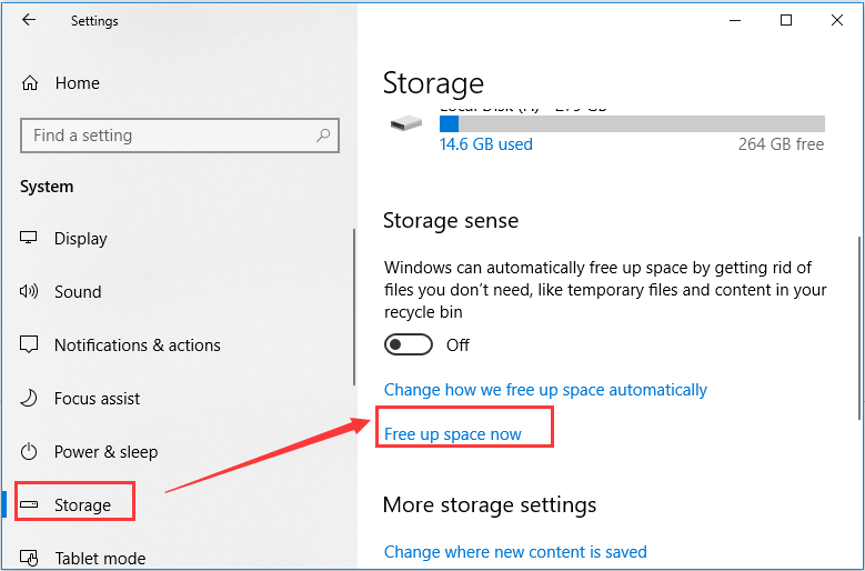
To understand the fix, you need to peek under the hood. Windows stores temporary update files in a specific location on your drive, typically in the C:\Windows\SoftwareDistribution folder. This folder acts as a hotspot for critical installation logs, metadata, and the downloaded files themselves.
When the Windows Update cache is not clearing, something inside this folder has usually gone wrong—corrupted download files, stuck metadata, or permission issues. Think of it like a clogged drain: a few bad bits of data can gum up the entire process, causing updates to fail, download loops to start, or your drive to fill up with useless junk.
Why Windows Update Cache Gets Stuck: The Real Culprits
Before we grab our digital toolbox, let’s look at what actually causes this mess:
- Corrupted Downloads: Your internet might have hiccupped during a download, leaving behind a broken file. Windows gets confused and refuses to move past it.
- File Locks: Sometimes the built-in Disk Cleanup utility loses the battle for file ownership, failing to delete locked files.
- Service Conflicts: Windows relies on several services—BITS, Cryptographic Services, and the Windows Update service itself. If any of these hang in the background, the cache won’t clear.
- Specific Error Codes: If you’re seeing error codes like 0x80070002 (missing update metadata) or 0x800f0922 (corrupted component store), your cache is almost certainly the culprit.
The Step-by-Step Fix: How to Finally Clear the Cache
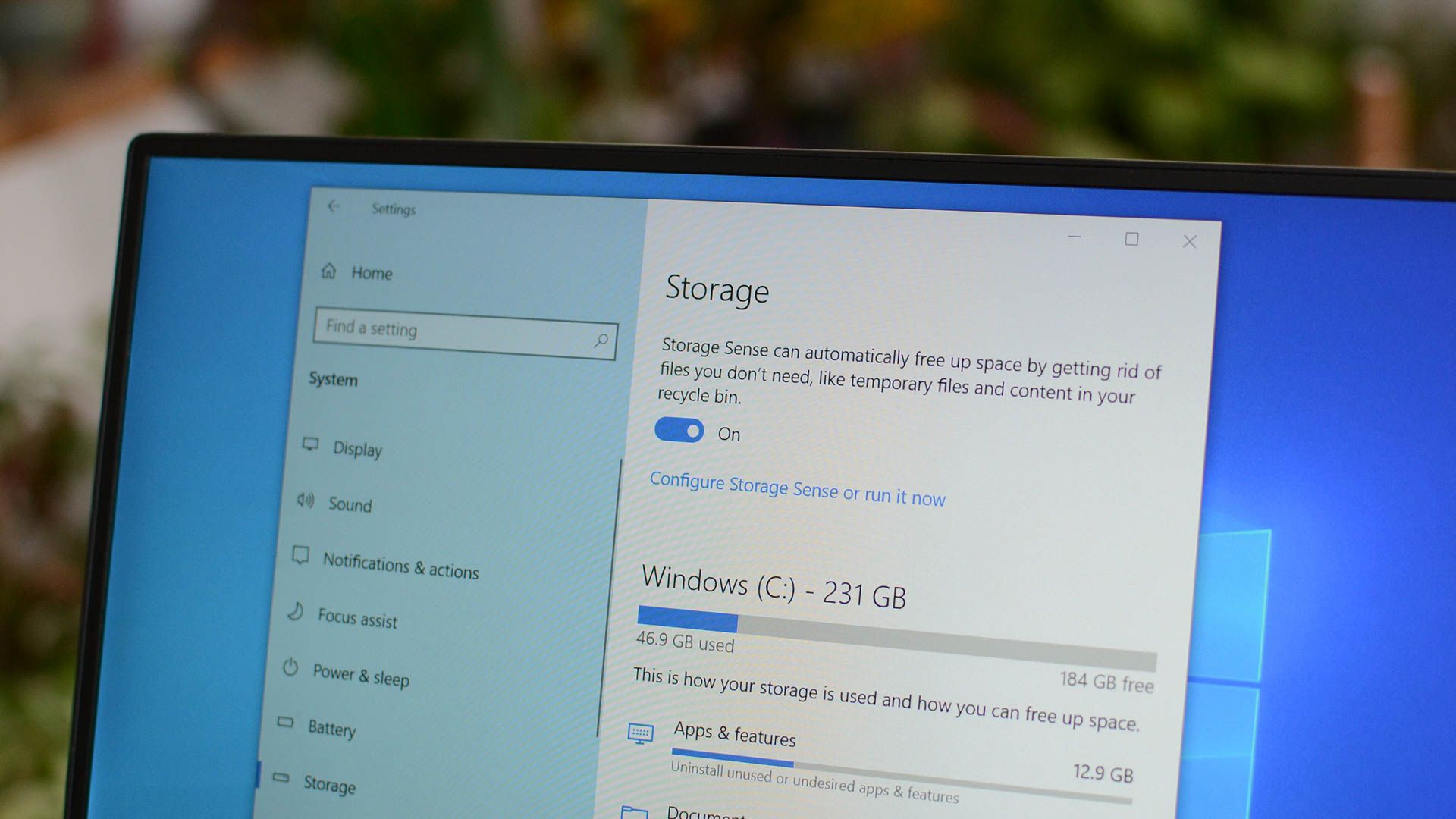
Don’t worry—you don’t need to be a hacker to fix this. I have curated the most effective methods to get your updates flowing again. Follow these in order for the best results.
Method 1: The Classic Reset (Manual File Deletion)
This is the gold standard. It clears the clutter instantly. However, you cannot delete the folder while Windows is using it. You must shut down the update services first.
Step 1: Stop the Windows Update Services
- Press
Windows + R, typecmd, and pressCtrl + Shift + Enterto run Command Prompt as Administrator. - Type the following commands, pressing
Enterafter each line:textnet stop wuauserv net stop bits net stop cryptsvcThis halts the Windows Update services.
Step 2: Delete the Old Cache
- Open File Explorer and navigate to:
C:\Windows\SoftwareDistribution\Download - Select all files (
Ctrl + A) and hit Delete.
Pro Tip: If you get an error that a file is in use, restart your PC in Safe Mode and try again. Safe mode loads only essential drivers, often unlocking stubborn files.
Step 3: Restart the Services
- Go back to your Command Prompt (Admin) and type:textnet start wuauserv net start bits net start cryptsvc
Restart your PC, then check for updates again. Windows will now build a fresh, clean cache.
Method 2: The “15-Minute Walkaway” (If Disk Cleanup is Stuck)
Are you trying to use the built-in Disk Cleanup but it freezes on “Windows Update Cleanup”? I have seen this happen on machines that have been running for years. The tool gets overwhelmed by the sheer volume of old logs.
Here’s the trick: When Disk Cleanup hangs, it is often waiting on a timeout. As one Microsoft engineer noted, the fix is patience. Start Disk Cleanup and walk away for at least 45 minutes to an hour. Do not touch it. When you return, run it again with the “Clean up system files” option enabled and walk away for another hour. Let it brute-force its way through the corruption.
Method 3: The PowerShell Nuke (For the Tech-Savvy)
If you want to automate the process and ensure nothing is left behind, PowerShell is your best friend. It is faster and more thorough than the manual method.
- Search for “PowerShell”, right-click it, and select Run as Administrator.
- Copy and paste this block of commands, then hit
Enter:powershellStop-Service -Name wuauserv, bits, cryptsvc -Force Remove-Item -Path “C:\Windows\SoftwareDistribution\*” -Recurse -Force Start-Service -Name wuauserv, bits, cryptsvc
This script stops the services, violently wipes every single file in the cache (including hidden ones), and starts the services back up in seconds.
Method 4: The Nuclear Option (DISM and SFC Scans)
Sometimes the issue isn’t the cache itself, but the operating system’s ability to read the cache. If the cache is not clearing even after a reboot, your system files might be corrupt.
Open Command Prompt as Administrator and run these commands in order:
- SFC (System File Checker):
sfc /scannow– This scans and repairs missing system files. - DISM (Deployment Imaging Servicing and Management): Run
DISM /Online /Cleanup-Image /RestoreHealth– This fixes the image Windows uses to install updates.
Recent updates to Windows 11 (24H2) have made these tools more reliable than ever for fixing underlying file corruption that causes cache clearing failures.
Pro Tip: How to Automate This Forever
Instead of waiting for the cache to break again, you can schedule a script to run once a month using Task Scheduler. Create a .bat file with the PowerShell code above and set it to run as Administrator every 30 days. This proactive maintenance prevents the “cache not clearing” error from ever happening again.
Why You Shouldn’t Ignore This
When the update cache is not clearing, it is not just about losing a few gigabytes of space. In 2026, security patches are released almost weekly. A stubborn cache can leave your PC vulnerable to the latest malware or security exploits that Microsoft is actively trying to patch out. Furthermore, a bloated cache can grind your boot times to a halt, randomly spike your CPU usage, and cause general system instability.
At a Glance: Choosing the Right Method
| Method | Best For | Difficulty | Time Required |
|---|---|---|---|
| Manual Reset | Stuck downloads, error codes | ⭐⭐ | 5 Minutes |
| Disk Cleanup Walkaway | The tool freezing mid-scan | ⭐ | 1 Hour |
| PowerShell Script | Advanced users, recurring issues | ⭐⭐⭐ | 2 Minutes |
| DISM & SFC Scans | Corrupt system files | ⭐⭐ | 15 Minutes |
Frequently Asked Questions (FAQ)
Q: Is it safe to delete the SoftwareDistribution folder?
A: Absolutely. While you cannot delete the folder itself while services are running, renaming it or emptying its Download sub-folder is Microsoft’s official recommendation. Windows will automatically recreate the necessary files the next time you check for updates.
Q: Why do I still see “Windows Update Cleanup” in Disk Cleanup after deleting the cache?
A: This is normal. The “Windows Update Cleanup” tool refers to old versions of Windows (Windows.old) or obsolete update uninstall files, not the immediate cache. You need to run Disk Cleanup as an Administrator and select “Clean up system files” to see these categories.
Q: I tried all of this, and my updates still fail with error 0x800f0922.
A: This specific error usually points to a corrupted Component Store (WinSxS) or a full System Reserved Partition. Run the DISM command mentioned above (Method 4). If that fails, you may need to extend your System Reserved partition using a third-party tool or perform a repair installation via an In-place Upgrade using the Windows Installation Media.
Q: Will clearing the cache uninstall my current updates?
A: No. The cache only stores downloaded installation files and logs. It has no effect on updates that are already successfully installed on your system.
Take Back Control of Your PC
The Windows Update system is powerful, but like any complex piece of software, it needs a reset sometimes. Now you have the tools to break that frustrating cycle when the cache is not clearing.
I want to hear from you: Did the PowerShell method work for you, or did you find a unique third-party tool that saved the day? Drop your experience in the comments below.
Read More – Geekafterdark





Pingback: How to Clear Windows Update Cache Properly 2026 Guide - Geek After Dark