


Introduction
A DNS issue can feel like digital quicksand—your Wi-Fi shows full bars, but apps stubbornly refuse to update, videos won’t stream, and web pages spin endlessly. It’s not your phone’s fault, nor is it the app’s. The problem lies deeper, in the internet’s address book: the DNS.
But here’s the liberating truth—a DNS issue is almost always fixable in under ten minutes with the right approach. Having wrestled with this problem more times than I care to admit, I’ll walk you through exactly what’s happening and how to get your digital world back on track.
Introduction: When Everything Looks Connected But Nothing Works
It started on a quiet Sunday morning. My coffee had just brewed, I was ready to catch up on my weekly newsletter reading, and… nothing loaded. Twitter wouldn’t refresh. Spotify played the same three cached songs and gave up. My news app showed me yesterday’s headlines with a stubborn loading spinner.
The Wi-Fi icon showed a perfect connection. Another device in the room worked flawlessly. My wife’s phone? Streaming video without a hiccup. “It’s just mine,” I thought. “Maybe I need a new phone.”
I didn’t need a new phone. I needed to understand my DNS issue.

What Actually Happens When a DNS Issue Strikes
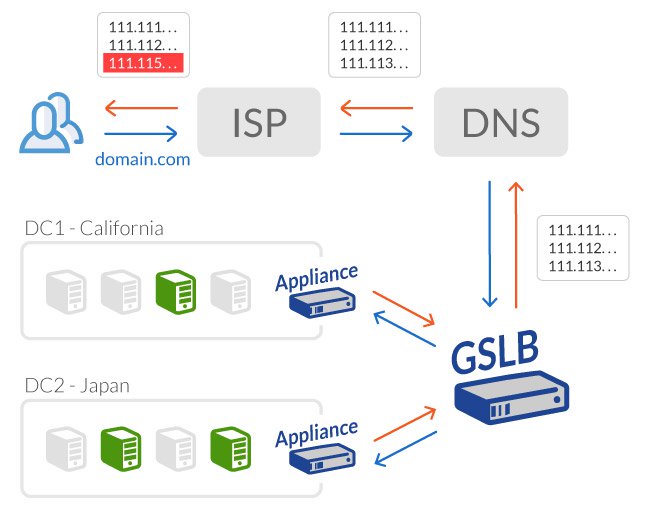
The Domain Name System (DNS) is the internet’s phonebook. When you type “youtube.com” into a browser or open the YouTube app, your device asks a DNS server: “Where can I find YouTube?” The DNS server responds with an IP address (like 142.250.190.46), and your device loads the content.
When something goes wrong in that process, you have a DNS issue. The server might be down, the address in your device’s local memory (the DNS cache) might be outdated or corrupted, or your Wi-Fi router might be blocking the request.
The challenge is that modern devices and apps layer their own caches on top of everything. Your phone has a system‑wide cache. Chrome has its own cache. Instagram has its own connection handling. This layering is why one app might load fine while another says “no internet connection”—they’re each looking at slightly different phonebooks.
The DNS Cache: A Classic Culprit
Let’s be clear: most intermittent DNS issues are not your ISP’s fault. They’re usually a DNS cache problem.
Think of the DNS cache as your device’s memory of where websites live. It’s there to speed things up. But if that memory gets corrupted or outdated, your device keeps trying to visit the wrong address. Flushing the cache forces your device to ask fresh questions.
How to Flush Your DNS Cache (By Device)
| Operating System / Device | Command / Actions |
|---|---|
| Windows | Open Command Prompt as Administrator → ipconfig /flushdns |
| macOS | Terminal → sudo dscacheutil -flushcache; sudo killall -HUP mDNSResponder |
| Android | Settings → Network & Internet → Advanced → Private DNS → (toggle off then on). For Android 9+, use Private DNS mode with a provider like dns.google |
| iOS | Toggle Airplane Mode on/off, or go to Settings → General → Transfer or Reset iPhone → Reset → Reset Network Settings (note: this removes saved Wi‑Fi passwords) |
| Browser (Chrome) | Visit chrome://net-internals/#dns → Click “Clear host cache” |
Pro tip: Browsers like Chrome, Firefox, and Safari each keep their own separate DNS caches. If a website works in Firefox but not in Chrome, the problem is almost certainly the browser’s cache, not a system‑wide DNS issue.
Diagnosing a DNS Issue: The 60‑Second Test

Before you change anything, confirm it’s actually a DNS issue. Open a command prompt or terminal and run:
| Step | Command | What It Tells You |
|---|---|---|
| 1 | ping 8.8.8.8 | If this works, your raw internet connection is fine |
| 2 | ping google.com | If step 1 works but step 2 fails, it’s almost certainly a DNS issue |
| 3 | nslookup google.com | Shows which DNS server responded and what IP address it returned |
If ping 8.8.8.8 succeeds but ping google.com fails, you’ve confirmed a DNS issue.
What the results mean:
✅ Both pings work → Not a DNS issue (look elsewhere: firewall, VPN, app permissions)
❌ First ping works, second fails → DNS issue confirmed — proceed to the fixes below
❌ First ping fails → Internet connection problem (restart router, check cables, call ISP)
Step-by-Step Fix for a DNS Issue
Step 1: Restart Everything (The Clean Slate)
Power off your modem, router, and the affected device. Wait 30 seconds (this matters—capacitors need time to discharge). Plug the modem back in first, wait for all lights to stabilize (about 1–2 minutes), then power on the router, then your device.
Many DNS issues resolve themselves here because the router receives fresh network configuration from your ISP.
Step 2: Flush Every Cache (System + Browser)
Clear your system DNS cache using the commands above, then immediately clear your browser’s DNS cache and standard cache. In most browsers, this means Settings → Privacy & Security → Clear browsing data → Select “Cached images and files” → Set time range to “All time” → Clear data.
Step 3: Change Your DNS Server (The Game Changer)
Your ISP’s default DNS servers are sometimes slow, unreliable, or even blocking certain apps. Switching to a public DNS server is the single most effective fix for a persistent DNS issue.
Recommended Public DNS Servers (2026)
| Provider | Primary DNS | Secondary DNS | Best For |
|---|---|---|---|
| Cloudflare | 1.1.1.1 | 1.0.0.1 | Speed & privacy (fastest globally) |
| Google Public DNS | 8.8.8.8 | 8.8.4.4 | Global reliability & uptime |
| Quad9 | 9.9.9.9 | 149.112.112.112 | Security (blocks malware & phishing) |
| OpenDNS (Cisco) | 208.67.222.222 | 208.67.220.220 | Parental controls & filtering |
| 阿里 DNS (China‑friendly) | 223.5.5.5 | 223.6.6.6 | Low latency within China |
| 114DNS (Legacy) | 114.114.114.114 | 114.115.115.115 | Broad compatibility for older devices |
How to change DNS on each device:
- Windows: Control Panel → Network and Internet → Network Connections → Right-click your active connection → Properties → Select “Internet Protocol Version 4 (TCP/IPv4)” → Properties → Enter the DNS addresses above
- macOS: System Settings → Network → Select your connection → Details → DNS → Add the new DNS servers
- Android: Settings → Network & Internet → Private DNS → Select “Private DNS provider hostname” → Enter
dns.googleorone.one.one.one - iOS: Settings → Wi-Fi → Tap the (i) icon next to your network → Configure DNS → Manual → Add the DNS servers
- Router: Login to your router’s admin panel (usually
192.168.1.1or192.168.0.1) → Look for DNS settings under WAN or Internet settings → Replace with your chosen DNS servers → Save and reboot. Setting DNS at the router level benefits every device on your network.
Router vs. device DNS: If you set DNS on the router, every device on your network automatically uses it—great for whole‑house fixes. Setting DNS directly on a device overrides the router and is useful for testing. For most people, changing it on the router is the smart long‑term move.
Step 4: Renew Your IP Address (When DNS Isn’t Enough)
Sometimes the issue is broader than DNS. In Windows:
text
ipconfig /release
ipconfig /renew
ipconfig /flushdns
On macOS:
System Settings → Network → Select your connection → Click “Renew DHCP Lease”
This forces your device to request a fresh network configuration from the router and often clears stubborn connectivity issues.
Advanced Protection: DNS over HTTPS (DoH)
Here’s where we move from fixing a problem to preventing it entirely. If you’re still reading, you care about more than just getting your apps to load—you want to understand and control your digital experience.
Most DNS queries are sent as plain text, meaning your ISP can see every website you visit and can even manipulate the results (blocking content or redirecting you to spam pages). DNS over HTTPS (DoH) encrypts your DNS queries, wrapping them in the same security layer as secure web browsing.
- Android 9+: Settings → Network & Internet → Private DNS → Select “Private DNS provider hostname” → Enter
one.one.one.oneordns.google - iOS 14+ & macOS: System automatically honors encrypted DNS settings when configured via configuration profiles or supported VPN apps
- Windows 11+: Settings → Network & Internet → Wi‑Fi/Ethernet → Hardware properties → DNS server assignment → Edit → Manual → Turn on IPv4 → Enter DNS servers → Toggle “DNS over HTTPS” to “On (automatic template)” for supporting providers
- Browsers (Firefox): Settings → Privacy & Security → DNS over HTTPS → Enable → Choose Cloudflare or Google as provider
DoH won’t magically fix every DNS issue, but it will prevent ISP-level blocking and tampering—a real consideration if your DNS problems only appear on mobile networks or certain Wi‑Fi access points.
When to Consider Using a VPN for DNS Issues
If you’ve tried everything above and still experience a DNS issue—especially one that disappears when you switch networks or use a VPN—your ISP may be intentionally interfering with your DNS traffic.
Some ISPs block access to public DNS servers, forcing you to use their own. They may also inject DNS‑based redirects for advertising or surveillance purposes.
A VPN bypasses this entirely by routing your DNS queries through an encrypted tunnel. If switching to a VPN immediately resolves your DNS issue, you’ve likely uncovered ISP‑level interference.
A word of caution: Not all VPNs handle DNS properly. Some leak your DNS queries. Always verify your VPN’s DNS configuration and use one with built‑in DNS leak protection.
The Long Game: Benchmarking Your DNS Performance
If you want to be truly intentional about your internet performance (and after dealing with enough DNS issues, you probably do), run a proper DNS benchmark on your specific network. The fastest DNS server globally isn’t necessarily the fastest on your connection.
Tools like DNS Benchmark (Windows), namebench (cross‑platform), or DNSpect can test dozens of DNS servers from your actual location. One user’s benchmark found public DNS servers outperforming their ISP’s default by a wide margin—sometimes seconds per query, which adds up to a meaningfully faster Web experience.
Key Takeaways: Your DNS Issue Toolkit
| Scenario | Most Likely Fix |
|---|---|
| Apps suddenly stopped working; other devices fine | Flush DNS cache → Restart device |
| Whole network is slow or unreliable | Change router’s DNS to Cloudflare (1.1.1.1) or Google (8.8.8.8) |
| Issue only on mobile network (not Wi‑Fi) | Enable Private DNS (Android) or use VPN |
| Works in one browser/app but not another | Clear that specific app’s or browser’s cache |
| Websites load but apps don’t | Check app permissions, clear app data, or reinstall |
| DNS works, then stops, then works again | ISP‑side issue—change DNS server or use DoH |
Frequently Asked Questions
Q: How do I know for sure it’s a DNS issue and not something else?
A: Run the 60‑second test above. If ping 8.8.8.8 works but ping google.com fails, you’ve confirmed it’s a DNS issue. If both work but apps still don’t load, the problem is likely at the application layer—clear the app’s cache or check for app‑specific outages.
Q: Is it safe to change my DNS server to Google or Cloudflare?
A: Yes. Google Public DNS and Cloudflare’s 1.1.1.1 are widely used, free, and generally faster and more reliable than ISP‑provided DNS. Both have published privacy policies. Quad9 adds an extra layer of security by blocking known malware domains.
Q: Will changing my DNS server speed up my internet?
A: Potentially, yes—for the initial lookup of domain names. Once a connection is established, the DNS doesn’t affect download speeds. The improvement is most noticeable when browsing many new sites, opening apps, or during activities with frequent lookups.
Q: Why does my app work on Wi‑Fi but not on mobile data?
A: This typically points to either (a) your mobile carrier blocking or messing with DNS queries, or (b) your mobile network using a different, misconfigured DNS server. Enable Private DNS on Android (use dns.google as the provider) or use a VPN on iOS.
Q: How often should I flush my DNS cache?
A: Only when you have a problem. Your DNS cache is designed to speed things up. Flushing it unnecessarily just means your device will have to re‑resolve domain names. Once every few months, or when issues arise, is plenty.
Q: My DNS issue keeps coming back after I fix it. What should I do?
A: This suggests a deeper configuration problem. Check for malware (some malware modifies DNS settings), verify your router’s firmware is up‑to‑date, and consider setting a persistent DNS server directly on the router rather than on individual devices. If the problem still recurs, your ISP may have an unstable DNS infrastructure—switching to a public DNS provider like Cloudflare or Quad9 is the definitive fix.
Final Thoughts: Your DNS Issue Is Solvable
Few things are as frustrating as technology that seems to work but doesn’t. A DNS issue is a perfect example—all the outward signs of connectivity, none of the actual functionality. But armed with the steps above, you now understand what’s happening behind the scenes and, more importantly, how to fix it.
Here’s your action plan, right now:
→ Try the 60‑second diagnostic test (it takes less time than waiting for an app to time out).
→ If you confirm a DNS issue, start with a full restart and cache flush—that alone solves most cases.
→ For a permanent upgrade, switch your router’s DNS to 1.1.1.1 (Cloudflare) or 8.8.8.8 (Google) and never think about ISP DNS limitations again.
→ If you’ve read this far, bookmark this page—you’ll need it again when a friend or family member inevitably asks, “My internet is connected, but… why isn’t anything loading?”
Have you encountered a particularly stubborn DNS issue? Or discovered a fix that isn’t listed here? Share your experience in the comments below—your insight might be exactly what another reader needs.
And if this guide helped you get back online, consider subscribing to the newsletter for more practical, hands‑on tech troubleshooting. No jargon. No fluff. Just solutions that actually work.
Because you shouldn’t need a computer science degree to make your internet work the way it’s supposed to.
Read More – Geekafterdark






Pingback: Laptop is Running Slow? 10 Easy Fixes That Actually Work 2026 - Geek After Dark
Pingback: Windows Update Stuck? 8 Proven Fixes That Actually Work (2026) - Geek After Dark
Pingback: How to Share Large Files Online: 7 Fast & Secure Methods (2026) - Geek After Dark
Pingback: Can I Delete Software Distribution Files? Safe Answer (2026) - Geek After Dark