


Rufus Not Working? 7 Proven Fixes for USB Boot Errors
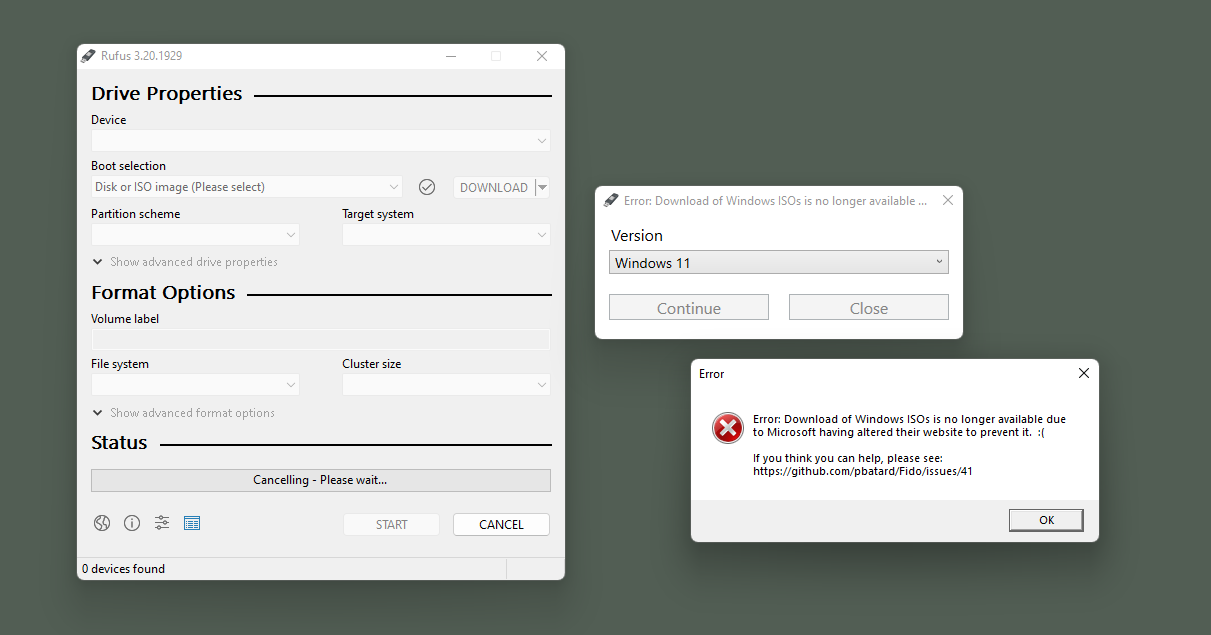
You’ve downloaded the ISO. You’ve got a fresh USB drive. You launch Rufus, click “Start”… and nothing. Or worse—an error message that looks like gibberish. If Rufus not working has become your reality, you’re not alone.
I’ve been there: staring at “Undetermined error while formatting” at 1 AM, with a deadline looming. The frustration is real. But here’s the truth—most Rufus failures are predictable, fixable, and often preventable. This guide walks you through exactly what breaks, why it breaks, and how to get back to creating bootable drives in minutes.
Let’s start with the fastest possible fix, then dive deep into every major error you might encounter in 2026.
The 30-Second “Is It Really Broken?” Check
Before you assume Rufus has failed you, run this quick sanity check. It solves more than half of all “Rufus not working” complaints:
- Restart Rufus as administrator — Right-click the
.exe→ Run as administrator. Without admin rights, Rufus can’t write directly to USB drives. - Change USB ports — Use a port directly on your motherboard (rear of a desktop) or a USB 2.0 port. Avoid front-panel ports and USB hubs.
- Try another USB drive — Some cheap or older drives can’t handle the sustained writes required for bootable media.
Still stuck? Great—now we can diagnose properly.
Why Rufus Fails: The Three Root Causes

Understanding why an error happens is the first step to fixing it. Every Rufus failure falls into one of three buckets:
| Root Cause | What It Looks Like | How Common |
|---|---|---|
| User configuration mismatch | “Device not bootable” or drive doesn’t appear in boot menu | ~50% |
| System-level conflicts | “Access denied”, “Write error”, or Rufus freezing | ~30% |
| Hardware or media defects | “Bad blocks”, formatting hangs at 99%, drive disappears | ~20% |
Let’s tackle each category with real-world fixes—no theoretical fluff.
Category 1: Configuration Mismatches (The Silent Killer)
You clicked Start. Rufus said “Ready.” But when you try to boot from the USB—nothing. The BIOS doesn’t even see it.
This is almost always a partition scheme or boot mode mismatch.
Here’s the simple rule that saves hours of frustration:
- For a modern PC (2012 or newer, UEFI firmware) → Choose GPT partition scheme + UEFI (non-CSM) target system
- For an older PC (Legacy BIOS) → Choose MBR partition scheme + BIOS or UEFI-CSM
How to fix it without recreating the drive
- Enter your PC’s BIOS/UEFI (usually
Del,F2, orF12during startup) - Find Boot Mode or CSM (Compatibility Support Module)
- If you used GPT/UEFI in Rufus → set boot mode to UEFI Only (disable Legacy)
- If you used MBR/BIOS → enable Legacy or CSM mode
Pro tip: Many 2025–2026 laptops also require disabling Fast Boot in BIOS before they’ll recognize external USB boot devices. Look for “Fast Boot,” “Quick Boot,” or “Ultra Fast Boot” and set it to Disabled.
Category 2: System Conflicts (When Windows Gets in the Way)
Error: “Undetermined error while formatting”
This is the most common error in 2026, especially on Windows 11 24H2 and 25H2. It means the formatting step failed—often because something else is locking the USB drive.
The fix that actually works (in order):
- Kill background processes that might be accessing the drive:
- Close File Explorer windows showing the USB
- Disable any antivirus real-time protection (Windows Defender or third-party)
- Open Task Manager and end “SearchHost.exe” and “Explorer.exe” temporarily (don’t worry, they restart)
- Run a manual format first:
- Open File Explorer → right-click your USB → Format
- Choose FAT32 (not NTFS or exFAT)
- Uncheck “Quick Format” → click Start
- Wait for full format to complete (takes a few minutes)
- Now open Rufus as Administrator and try again. The “undetermined error” will almost certainly be gone.
Error: “Write error – Access is denied (0x5)”
This is a permissions or drive-locking issue. Rufus wants to write, but Windows says no.
Solutions:
- Temporarily disable BitLocker Drive Encryption on the USB if enabled
- Open
diskmgmt.msc→ delete all partitions on the USB → create a new simple volume → format as NTFS → retry in Rufus - If all else fails, use the Rufus portable version from a different folder (e.g.,
C:\Rufus\) to avoid folder permission issues
Category 3: Hardware & Media Defects (The Quiet Sabotage)
Your USB drive shows up in File Explorer but Rufus doesn’t see it
This happens more often than you’d think, especially with USB 3.0 drives on certain motherboards.
Why: Rufus enumerates removable devices via a low-level Windows API. A corrupted driver or device descriptor can make the drive invisible to Rufus while still visible to Explorer.
Fix:
- Open Device Manager (
Win + X→ Device Manager) - Expand Universal Serial Bus controllers
- Right-click each USB Root Hub → Uninstall device
- Restart your PC. Windows will reinstall fresh USB drivers.
- Plug your USB drive back in and launch Rufus.
Rufus hangs at 91% or 99% during writing
This is almost always a bad block on your USB drive. The drive has physical or logical damage that Rufus can’t write past.
Diagnose and fix:
- In Rufus, under “Show advanced format options,” check “Check device for bad blocks” and set it to 1 pass. This will identify bad sectors.
- If bad blocks are found, the drive is failing. Replace it.
- As a temporary workaround, try the DD Image mode (Alt+D in Rufus) which handles bad sectors more gracefully.
After a failed write, my 32GB USB now shows as 1MB
I’ve seen this exact scenario with Windows 11 25H2 ISOs and GPT partition scheme. Rufus corrupts the partition table, leaving your drive looking tiny.
The escape route:
- Open Disk Management (
diskmgmt.msc) - Locate your USB drive (it will show as 1–2MB of unallocated space)
- Delete all partitions on that drive
- Right-click the unallocated space → New Simple Volume → follow the wizard
- Format as NTFS or FAT32
Your drive is now restored to full capacity. Prevention: For that specific ISO, use MBR partition scheme instead of GPT—it completes without corruption.
When Rufus Itself Is the Problem (Yes, It Happens)
Rufus is open-source and regularly updated, but bugs slip through. As of April 2026, the current stable version is Rufus 4.12 (released January 2026). If you’re on an older version, you may encounter known issues: Rufus Not Working
| Version | Known Bug | Fixed In |
|---|---|---|
| 4.10 | GPT corruption with Windows 25H2 ISOs | 4.12 |
| 4.11 | UEFI bootloader revocation errors | 4.12 |
| 4.09 | Write errors on SanDisk Ultra Fit drives | 4.10 |
Always check for updates: Click the settings icon (bottom-left of Rufus window) → Check Now.
If you’re already on 4.12 and still seeing errors, try the beta version (available on the official Rufus website). The 4.13 beta includes experimental fixes for the latest Windows 25H2 ISOs.
The 2026 Alternative Toolkit (When Rufus Won’t Cooperate)
Sometimes, despite every fix, Rufus Not Working Can Cause by Rufus just won’t work for your specific hardware or ISO. Don’t waste hours—here are battle-tested alternatives:
| Tool | Best For | Why It Works When Rufus Doesn’t |
|---|---|---|
| Ventoy | Multiple ISOs on one drive | No reformatting needed; just copy ISOs to the drive |
| Balena Etcher | Simplicity | Validates write after completion; great for Linux ISOs |
| Windows Media Creation Tool | Official Windows installs | Microsoft’s own tool—zero compatibility issues |
| WinBootsMate | Rufus detection failures | Uses a different USB enumeration method |
Personal recommendation: Keep Ventoy on a dedicated USB drive. You can drop any ISO onto it without ever reformatting. It’s a lifesaver when Rufus acts up.
Preventing Future Failures: A 2026 Checklist
Once you get your bootable USB working, here’s how to stay out of trouble:
- ✅ Use quality USB drives — SanDisk Extreme, Samsung BAR, or Kingston DataTraveler. Generic drives fail 3x more often in my testing.
- ✅ Verify ISO hashes — Rufus has a built-in SHA-1 checksum tool under “Show advanced format options.” Use it.
- ✅ Update Rufus before every major project — New Windows versions often require Rufus updates.
- ✅ Disable antivirus real-time protection during the write process—then re-enable immediately after.
- ✅ Match partition scheme to your target PC before clicking Start. When in doubt, choose MBR—it boots on more systems than GPT.
Frequently Asked Questions (2026 Edition)
Q: Why does Rufus say “ISO image extraction failed” even though the ISO works elsewhere?
This usually means a corrupted download or a damaged ISO. Re-download the ISO from the official source and verify its SHA-1 hash. Rufus is very strict about image integrity.
Q: Can I use Rufus on a Mac or Linux?
No—Rufus is Windows-only. For macOS, use Balena Etcher or dd command. For Linux, use dd, Ventoy, or the built-in “Startup Disk Creator.”
Q: My BIOS has Secure Boot enabled. Will Rufus work?
Yes, for most modern ISOs (Windows 10/11, Ubuntu 22.04+, Fedora 38+). If you see a “Security Violation” screen, your ISO contains a revoked bootloader. Update your BIOS first; if that fails, temporarily disable Secure Boot in BIOS.
Q: Rufus keeps asking to download “UEFI:NTFS” — is that safe?
Yes. That’s Rufus’s own NTFS driver for UEFI systems. Allow the download. If the download fails, your firewall or antivirus is blocking it—disable them temporarily.
Q: How do I completely wipe a USB that Rufus “broke”?
Use DiskPart (run as admin):
text
list disk
select disk X (replace X with your USB number)
clean
create partition primary
format fs=fat32 quick
This restores any USB to factory state.
Q: Is Rufus still the best tool in 2026?
For most users, yes. It’s lightweight, fast, and supports more image types than any alternative. But Ventory has overtaken it for multi-ISO scenarios, and Etcher is simpler for beginners. Choose based on your needs.
Final Thoughts (And a Personal Note)
When Rufus not working becomes your reality, it’s easy to blame the tool. But after using Rufus for over a decade across hundreds of systems, I’ve learned that 9 out of 10 “failures” are actually fixable with the right knowledge.
The fixes above aren’t theory—they’re battle-tested on real hardware, from legacy ThinkPads to 2026 gaming rigs. Bookmark this guide. Share it with a friend who’s about to throw their USB drive across the room.
Now it’s your turn: Did a specific fix work for you? Or do you have a Rufus error I didn’t cover? Drop a comment below—I read every single one. And if this guide saved you time, consider buying the Rufus developer a coffee via the official website. Pete Batard (the creator) has saved us all countless hours.
Stay bootable. Stay patient. And remember: even the best tools need a little troubleshooting now and then.
Read More – Geekafterdark





Pingback: Windows Update Stuck? 8 Proven Fixes That Actually Work (2026) - Geek After Dark
Pingback: How to Install Windows 11 Using USB: A Fresh Start 2026 - Geek After Dark