
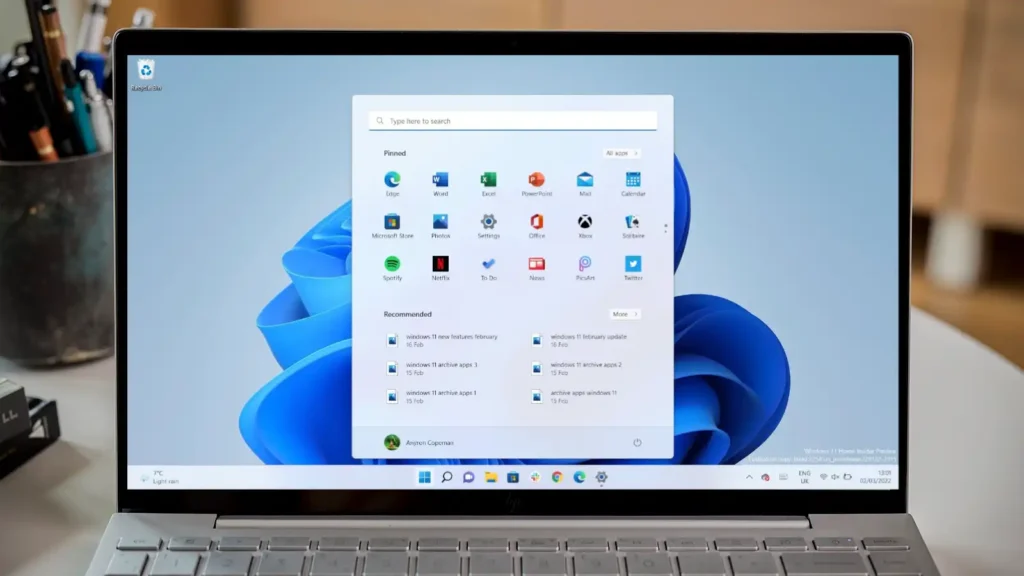

You know that feeling when your PC takes forever to boot, apps crash for no reason, and the Start menu feels like it’s moving through molasses? I’ve been there. After months of putting it off, I finally decided to wipe everything clean and start over. The solution? Learning how to install Windows 11 using USB—and it turned out to be far simpler than I expected.
Forget slow upgrade assistants or waiting for Microsoft to push the update. A bootable USB drive gives you total control. Whether you’re building a new gaming rig, reviving an old laptop, or just want that “new PC smell” without buying new hardware, this guide will walk you through every step with clarity, honesty, and a few hard‑earned lessons from my own mistakes.
Let’s dive in.
What You’ll Need Before You Start
Preparation is everything. I once tried to skip the checklist and ended up staring at a “No bootable device” screen for an hour. Don’t be me.
Hardware & Software Checklist
| Item | Requirement | Notes |
|---|---|---|
| USB flash drive | 8 GB minimum (16 GB recommended) | All data will be erased. Use a reliable brand like SanDisk or Samsung. |
| Working computer | Windows 7 or newer | You’ll use this to create the bootable USB. |
| Windows 11 license | Product key or digital license | If your PC already had Windows 10/11 activated, it should auto‑activate. |
| Backup drive | External HDD or cloud storage | Back up everything important. A clean install wipes your drive. |
Does Your PC Meet Requirements to install Windows 11 ?
This is where many people get stuck. Windows 11 has stricter hardware requirements than any previous version. You’ll need:
- TPM 2.0 (Trusted Platform Module) – most PCs from 2018 onward have it, but it may be disabled in BIOS.
- Secure Boot capable UEFI firmware.
- 4 GB RAM (8 GB or more is better).
- 64 GB storage (aim for 128 GB+ for real comfort).
- A compatible 64‑bit processor (Intel 8th gen or AMD Ryzen 2000 series or newer).
👉 Quick check: Download Microsoft’s PC Health Check tool. Run it. If it says “Compatible,” you’re golden.
Two Ways to Create a Bootable Windows 11 USB
There’s the official Microsoft way, and then there’s the power‑user way. I’ll show you both.
Method 1: The Official Microsoft Media Creation Tool (Easiest)
This is what I recommend for 90% of people. It’s safe, simple, and handles all the tricky formatting automatically.
1st Step: Download the Windows 11 Media Creation Tool from Microsoft’s official site.
2nd Step: Insert your USB drive. Back up anything on it first – everything will be erased.
3rd Step: Run the tool. Accept the license terms.
Step 4: Select “Create installation media for another PC.” Then choose your language, edition (Windows 11 Home or Pro), and architecture (64‑bit).
Step 5: Choose USB flash drive from the options. Select your drive from the list.
Step 6: Click Finish and wait. The tool will download Windows 11 (about 5–6 GB) and make the USB bootable. This takes 15–30 minutes depending on your internet speed.
That’s it. Your bootable USB is ready.

Method 2: Rufus – For Advanced Users
Rufus is a free, open‑source tool that gives you more control. I use it when I need to bypass some of Windows 11’s hardware checks (e.g., installing on an older but perfectly capable PC).
Why choose Rufus?
- It can create a bootable USB from an ISO file you already have.
- It offers options to remove TPM 2.0 and Secure Boot requirements.
- It’s faster for experienced users.
How to use Rufus:
- Download the Windows 11 ISO directly from Microsoft (the same download page has an ISO download option).
- Download Rufus (it’s portable – no installation needed).
- Open Rufus, select your USB drive, then click SELECT to choose the Windows 11 ISO.
- Under Image option, you’ll see choices like “Standard Windows installation” or “Extended Windows 11 installation” (the latter removes TPM/Secure Boot limits).
- Click START and wait.
My take: If you’re not sure, use the Microsoft tool. If you want to install Windows 11 on a slightly older machine, Rufus is your friend.
How to Boot from USB and Install Windows 11
This is where the magic happens. But first, a quick warning: This will erase everything on your target computer’s main drive. Back up your files before proceeding.
Step 1: Enter the Boot Menu or BIOS
Insert your bootable USB into the computer where you want to install Windows 11. Then restart that computer.
As soon as the screen lights up, start pressing the boot menu key repeatedly. Common keys:
- Dell, HP, Lenovo, Acer – F12
- Asus – ESC or F8
- MSI, Gigabyte – F11
- Older PCs – F2 or Del (to enter BIOS and change boot order manually)
Still unsure? Search “boot menu key for [your PC model]” – that’s saved me multiple times.
Select your USB drive from the list (it might say “UEFI: USB drive” or just the brand name). Press Enter.
Step 2: The Windows Setup Experience
Once booted from USB, you’ll see the blue Windows Setup screen.
- Choose your language, time, and keyboard layout. Click Next.
- Click Install now.
If you’re asked for a product key, enter it now. If you’re reinstalling on a PC that already had a licensed Windows 10/11, click “I don’t have a product key” – it will auto‑activate later.
Step 3: Choose “Custom: Install Windows only (advanced)”
Do not choose “Upgrade.” That keeps old files and defeats the purpose of a clean install. Custom gives you a truly fresh start.
Step 4: Delete old partitions (optional but powerful)
You’ll see a list of partitions on your drive. To get the cleanest install:
- Delete each partition one by one until you see “Unallocated space.”
- Select that unallocated space and click Next.
Windows will automatically create the necessary partitions and start copying files. This takes 10–20 minutes. Your PC will restart once or twice – do not remove the USB drive yet.
Step 5: The Out‑of‑Box Experience (OOBE)
After the final restart, you’ll be guided through personalization:
- Choose your region and keyboard layout.
- Connect to Wi‑Fi (if possible – wired is more stable during setup).
- Name your PC (keep it short, like “Gaming‑Rig” or “Work‑Laptop”).
- Sign in with a Microsoft account or create a local account (look for “Offline account” if you prefer privacy).
Windows will finalize settings. When you see the desktop, congratulations – you’ve successfully installed Windows 11.
Three Common Mistakes (And How to Avoid Them)
I’ve made all of these. Learn from my pain.
| Mistake | Why It Happens | The Fix |
|---|---|---|
| “No bootable device found” | BIOS is trying to boot from the hard drive, not the USB. | Re‑enter BIOS and change boot order, or use the boot menu key. |
| “Windows can’t be installed on this drive” | Your drive is MBR, but Windows 11 needs GPT. | During setup, press Shift+F10, type diskpart, then convert gpt. (Search for a full guide – it’s easy.) |
| Installation fails at 70% | Corrupted ISO or bad USB drive. | Re‑create the USB using the Microsoft tool on a different drive. |
Fresh Perspective: Is a Clean Install Always Worth It?
Most guides tell you a clean install is always better. I disagree.
When a clean install makes sense:
- Your PC is infected with malware that won’t go away.
- You’ve upgraded from Windows 7 → 10 → 11 and things feel sluggish.
- You’re selling or giving away the computer.
- You simply want the satisfaction of a totally blank slate.
When you should upgrade instead:
- You have dozens of specialized apps (CAD, music production, video editing) and don’t want to reconfigure everything.
- You’re short on time – an upgrade takes ~1 hour; a clean install plus reinstalling apps takes half a day.
- Your current installation is running perfectly fine.
I personally clean install once a year, like spring cleaning. But for most people, an in‑place upgrade via Windows Update is perfectly fine. The USB method gives you freedom, but freedom comes with responsibility.
After Installation: First Things First
You’ve got a fresh Windows 11 desktop. Now what?
- Run Windows Update – Settings → Windows Update. Install all drivers and security patches. Restart as needed.
- Install your essential apps – Browser (Edge is fine, but I switch to Firefox or Brave), Discord, Steam, Office, etc.
- Activate Windows – If it doesn’t auto‑activate, go to Settings → Activation and enter your product key.
- Create a recovery drive – Search for “Create a recovery drive” and make another USB. Future you will be grateful.
Key Takeaways at a Glance
| Phase | Time Needed | Difficulty |
|---|---|---|
| Creating bootable USB | 15–30 min | Easy |
| Booting from USB | 5 min | Medium (BIOS can be tricky) |
| Installing Windows | 20–40 min | Easy |
| Post‑install setup | 30–60 min | Easy |
Total: About 1–2 hours of active work, plus download time.
Final Verdict: Is Learning How to Install Windows 11 Using USB Worth It?
Absolutely. Once you know how to install Windows 11 using USB, you’ll never fear a broken PC again. You become the person who can rescue a friend’s laptop, breathe life into an old desktop, or wipe a spyware‑infested machine in under an hour.
The process looks intimidating from the outside. But inside? It’s mostly clicking “Next” and waiting. And that feeling when you see the fresh, clean desktop – no bloatware, no clutter, just potential – is genuinely satisfying.
Now it’s your turn.
Call to Action
Have you ever installed an OS from a USB before? Or are you about to try it for the first time? Drop a comment below – I’d love to hear your story or help troubleshoot if you get stuck.
If you found this guide useful, share it with a friend who’s still suffering with a slow, glitchy PC. And if you want more practical tech guides (no clickbait, just clarity), consider subscribing to the newsletter.
Now go create that USB. You’ve got this.
Read More – Geekafterdark



Pingback: 17 Hidden Windows 11 Features You Should Be Using - Geek After Dark