
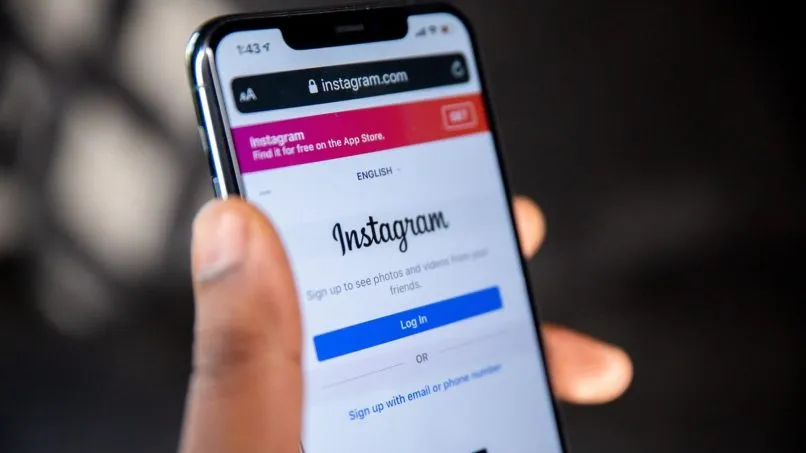

We’ve all been there. You’re trying to check a quick notification, respond to a DM, or simply scroll through your feed, but instead of your home page, you’re greeted by a spinning wheel of doom or an error message that just says “Sorry, something went wrong.” If you’re reading this, you’re likely experiencing an Instagram login problem, and it feels like you are locked out of your digital life. But before you panic or delete the app in frustration, there is good news: most of these issues have simple, effective fixes.
This guide covers the top 10 ways to regain access to your account, explained in plain English. We’ve also included a handy comparison table to help you diagnose the issue instantly.
The Main Culprits: Why Can’t You Log In?
It helps to understand why this is happening. Why Instagram login problem occuring According to recent analysis, the causes usually fall into three categories:
- User Error: We are all human. A typo in a password, a forgotten username, or an old email address that was never updated is the number one reason for lockouts.
- Environmental Issues: This includes weak Wi-Fi, corrupted app cache, or an outdated version of the app.
- Security Flags: Instagram is notoriously protective. If you log in from a new device, use a VPN, or have multiple failed attempts, their AI system may temporarily lock the account to protect it.
10 Proven Fixes for Your Instagram Login Problem
Follow these steps in order. You will likely solve the issue before reaching the end of the list.
1. The “Reality Check” (Double Check Credentials)
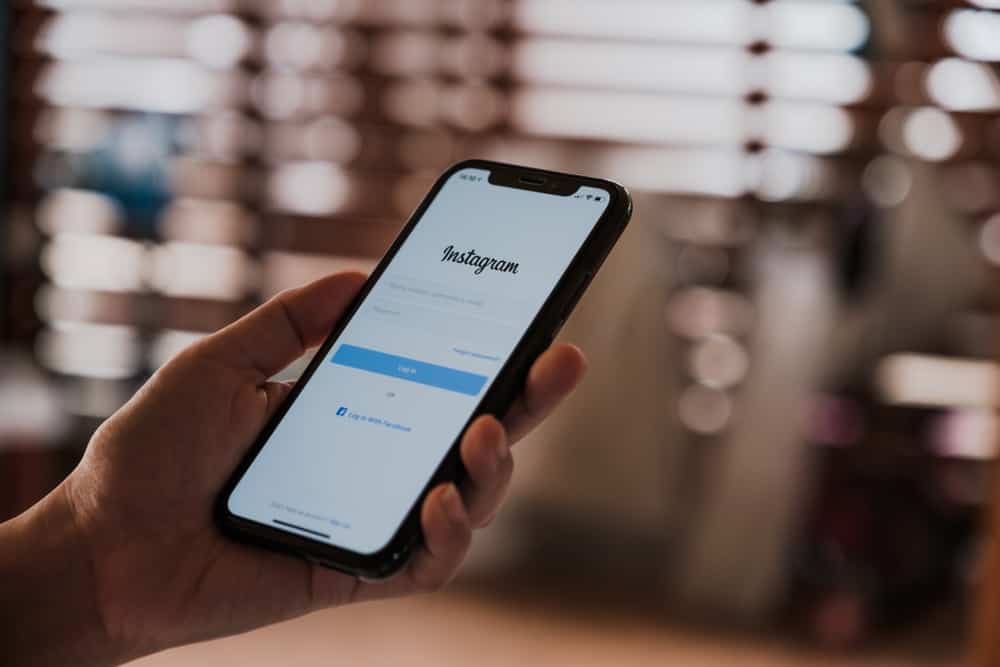
Before diving into complex settings, check the basics. Often, the Instagram login problem is simply a case of caps lock being on or an old password saved in your browser. Go to a private window or incognito tab and manually type your username and password.
2. The “Airplane Mode” Reset
This is a technician’s secret weapon. Toggle on Airplane Mode, wait 10 seconds, and toggle it off. This forces your phone to re-establish a fresh connection with your cell tower, often flushing out minor network glitches that block authentication requests.
3. Clear Corrupted Cache (Android)
If your app is glitchy or crashing, the cache might be corrupted.
- For Android: Go to
Settings>Apps>Instagram>Storage>Clear Cache. - For iOS (iPhone): Apple doesn’t allow manual cache clearing. You must offload the app: Go to
Settings>General>iPhone Storage>Instagram>Offload App, then reinstall it.
4. Check Server Status
Sometimes, it’s not you; it’s them. Before you reset your router, check if Instagram is down. Head to DownDetector to see if there is a spike in user reports. If the servers are down, all you can do is grab a coffee and wait.
5. Update or Reinstall the App
An outdated version of the app will often refuse to connect to updated security servers.
- Go to the App Store (iOS) or Play Store (Android) and ensure Instagram is updated to the latest version.
- If it’s already updated, uninstall and reinstall. This removes any corrupt installation files that a standard update might miss.
6. Disable VPN and Proxies
Instagram’s security algorithm looks for “suspicious” IP addresses. If you are using a VPN, Instagram may see that you are logging in from a data center in another country, which flags the system. Turn off your VPN and try connecting with your standard mobile data (4G/5G) instead of Wi-Fi to bypass IP blocks.
7. Sync Your Date & Time
This sounds weird, but it works. Security certificates rely on accurate timestamps. If your phone’s clock is off by even a few minutes, Instagram will reject your login token. Go to your phone’s settings and set Date & Time to Automatic.
8. The “Forgot Password” Deep Dive
If you click “Forgot Password” and nothing happens, you may need to escalate. If you cannot access your email or phone, click “Try another way” or “Get help logging in.”
- Video Selfie: For personal accounts, Instagram may offer a video selfie verification. Their AI compares your face to photos on your account to verify you are the real owner.
- Facebook Login: If your Instagram is linked to a Facebook Page, try the “Login with Facebook” button to bypass the standard password check.
9. Security Check Lock (The Loop)
Are you stuck in an infinite loop? You verify your phone number, but it kicks you back to the login screen? This is called the “Challenge Required” loop. It happens when your trust score is too low.
- The Fix: Stop trying! Every failed attempt lowers your score further. Leave the account alone for 24 hours. Try again from a completely different network (e.g., your office Wi-Fi or a friend’s phone).
10. The Appeal Process (Hacked/Disabled)
If you see a message saying “Account Disabled” or “Suspicious Login Attempt,” your account may have been hacked.
- Go to Instagram’s official hacked support page:
instagram.com/hacked. - Follow the prompts to secure your email first, then revert the changes.
- If you were banned by mistake, submit an appeal through the Help Center and upload a government ID if requested.
Quick Diagnosis Table
How to Prevent Future Login Problems
Once you are back in, do not let this happen again. Here is how to secure your account while ensuring you never get locked out:
- Save Backup Codes: If you use Two-Factor Authentication (2FA), save the backup codes given to you during setup. Store them in a password manager or a safe place.
- Update Recovery Info: Ensure your phone number and email address in
Settings>Personal Informationare up to date. - Review Login Activity: Go to
Settings>Security>Login Activity. End sessions on old devices you do not use anymore. - Use a Password Manager: It helps you avoid using the same password across multiple sites.
Frequently Asked Questions (FAQ)
Q: Why does Instagram keep saying “An unknown error occurred”?
A: This is a catch-all error usually caused by corrupted app data or weak connectivity. It means the app cannot pinpoint the issue. Try switching from Wi-Fi to mobile data or reinstalling the app to fix it. It is a very famous instagram login problem
Q: I am not receiving the SMS verification code.
A: First, ensure you have a strong signal. Second, check if you have blocked shortcode numbers on your phone. If you use an authenticator app (like Google Authenticator), try removing the Instagram entry and re-adding it, as the time sync may have drifted.
Q: Can I recover my account if I lost access to my email and phone number?
A: Yes. On the login screen, tap “Forgot password” and then “Need more help?” Instagram will trigger a video selfie verification where you look at the camera. If approved, they will send you a login link within 24-48 hours.
Q: My account was disabled for no reason. How do I fix it?
A: Instagram does not disable accounts without a reason, though false positives happen. You must submit an appeal through the Help Center. Do not spam the appeal form; submitting once and waiting 3-5 days is the only way.
Q: Does using a VPN cause login problems?
A: Yes, frequently. Instagram blocks many datacenter IPs. If you must use a VPN, ensure you are using a “Residential” IP or simply turn it off when logging into social media.
Ready to Get Back Online?
Few things are as frustrating as being locked out of your own profile. Whether it was a simple typo or a complex verification loop, one of these solutions should have done the trick.
Call to Action (CTA):
Did this guide help you get back in? Share this article with a friend who is always complaining about their app acting up! Or, if you are still stuck, drop a comment below (tell us the exact error message you see), and we will try to help you troubleshoot further.
Disclaimer: This guide is for educational purposes regarding your own account security. Attempting to bypass security on accounts you do not own is illegal.
Read More – Geekafterdark




Pingback: Instagram Reels Not Loading? 7 Fixes That Work (2026) - Geek After Dark
Pingback: Instagram Not Loading? 7 Fixes That Actually Work (2026 Guide) - Geek After Dark