
Introduction
Tired of the endless loading spinner when you try to grab that hilarious video or important document? You are not alone. The “Telegram Not Downloading Media” error message is one of the most common—and frustrating—issues users face today. Whether you are on a high-end iPhone or a flagship Android, your media files suddenly decide they don’t want to leave the cloud. In this guide, we will go beyond the generic “check your Wi-Fi” advice. Drawing from recent 2025-2026 user reports and technical deep-dives, we will uncover the real culprits behind the glitch and get your downloads flowing again.
Quick Diagnosis: Is It You or Telegram?
Before resetting your entire phone, stop and look at the failure pattern. Is the download bar stuck at 50% for every large file, or does the download fail instantly? This distinction saves you time.
| Symptom | Most Likely Cause | Fix Priority |
|---|---|---|
| Stuck at 99% | Battery Optimization / Power Saving Mode | High |
| Fails immediately on Wi-Fi | Router Firewall / ISP Blocking | Medium |
| Works on Wi-Fi but not Cellular | Data Saver / “Allow Unrestricted Data” Off | High |
| Fails for large files only | Storage Full or Auto-Download Size Limit | High |
| File shows “Unsupported Attachment” | Android Scoped Storage Permissions | Low (Reinstall) |
1. The “Network Paradox”: Why Fast Internet Still Fails
You might have Gigabit fiber, but Telegram’s connection logic is unique. Unlike WhatsApp, which uses a standard HTTP pipeline, Telegram utilizes a combination of standard web connections and its proprietary MTProto protocol. This means standard network issues hit Telegram harder.
The VPN & ISP Trap
If you live in a region where Telegram is throttled, or if you use a VPN for privacy, you might have inadvertently created a loop. According to recent network analysis, Telegram’s media download function often uses a different code path than messaging. While your texts send instantly, the media download might be bypassing your proxy or VPN settings entirely, leading to a hard block. My advice: If you use a VPN, whitelist Telegram or try switching to a different server location. If you use a custom proxy in Telegram settings, toggle it off entirely and test — many users report this single step instantly fixes the “downloading stuck” error.
The Time Sync Secret
This is one of the most overlooked “unique insights” in Telegram troubleshooting. Telegram uses encrypted time tokens to verify your session. If your phone’s date and time are even slightly off—usually because you turned off “Automatic Date & Time”—Telegram servers will reject your download request with a vague error code [16] (BadMsgNotification). Before doing anything else, go to your phone settings and ensure you are syncing time automatically.
2. The Permissions Shift: Android 13+ and iOS Scoped Storage
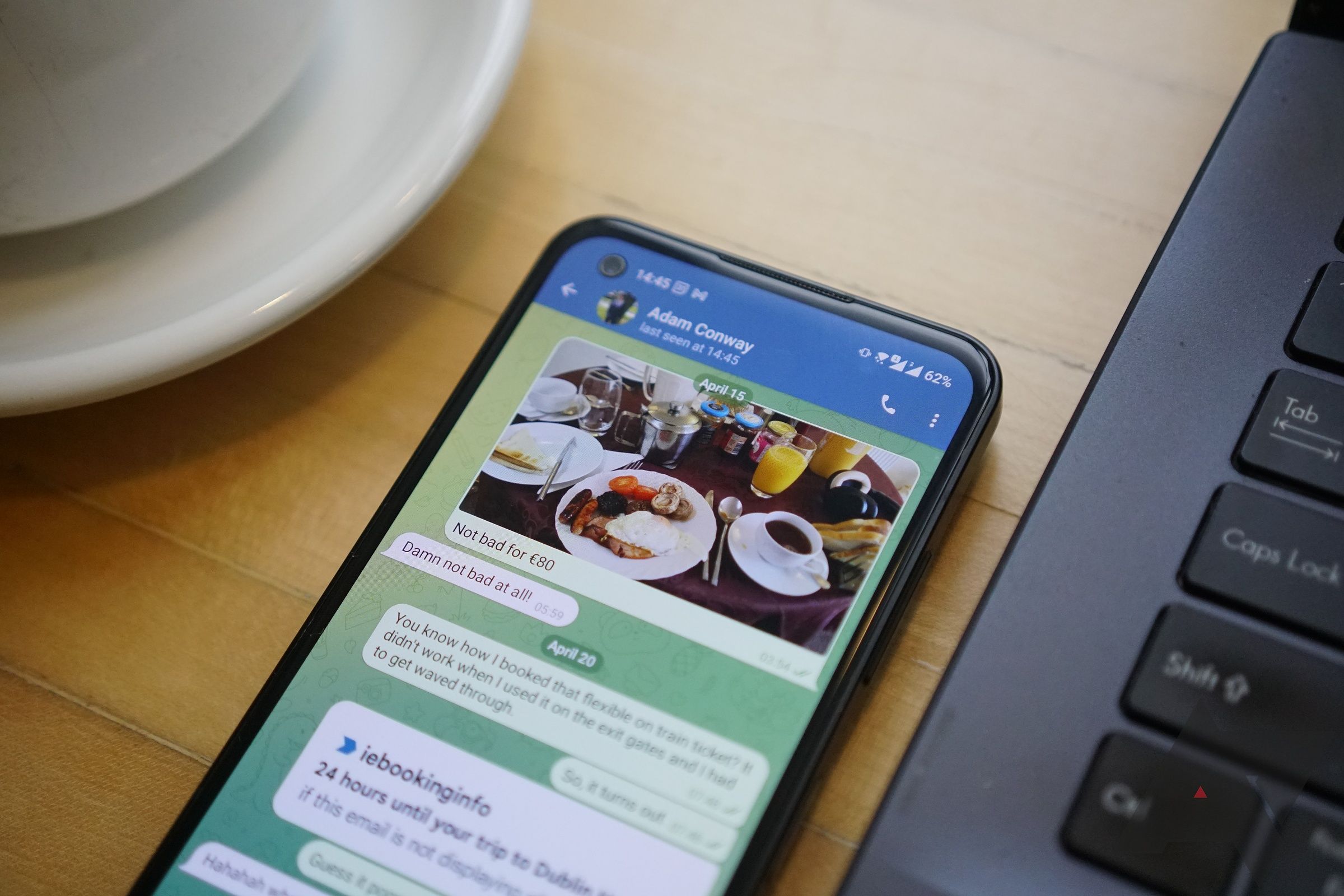
If you have updated your phone’s OS recently, this applies to you. Modern Android versions (Android 11-14) and iOS have tightened security with “Scoped Storage.” Previously, apps had free rein. Now, they need explicit permission to touch your “Downloads” folder or Gallery.
The “Files and Media” Permission
If Telegram cannot see your internal storage, it will simply discard the download. There is no error message—it just doesn’t happen.
- On Android: Navigate to Settings > Apps > Telegram > Permissions. Tap “Files and Media” and ensure it is set to “Allow”.
- On iOS: Go to Settings > Telegram > Photos. Select “Read and Write”.
The Mirage of “Free Space”
I have seen phones with 2GB of free space claim they have “space,” but fragmented storage or full system caches can block Telegram. Telegram needs contiguous space to assemble files, especially the up to 2GB file limit. The fix: Install a file manager. If you see less than 10% total storage free, delete irrelevant WhatsApp backups or old podcasts immediately.
3. Data & Battery: The Silent Killers
Modern phones aggressively kill background processes to save battery. Unfortunately, Telegram downloads are a background process.
The “Low Data Mode” Trap
Most Android phones have a “Data Saver” mode. When enabled, it restricts background data. If Telegram is sleeping, your download will hang the moment you lock your screen. Go to Settings > Network & Internet > Data Saver and uncheck Telegram to allow it unrestricted access.
Battery Optimization
This is the #1 reason for “Stuck at 99%”. The phone allows the download to start, but as the file finishes assembling, the CPU decides to put the app to sleep. To fix this:
- Android: Settings > Battery > Battery Optimization > Find Telegram > Select “Don’t Optimize” or “No Restrictions”.
- iOS: Settings > Telegram > Background App Refresh > Set to “Wi-Fi & Mobile Data”.
4. The “Keep Media” Strategy (Best Practices)
A key feature most people ignore is “Keep Media.” This setting dictates how long Telegram stores a video locally before auto-deleting it to save space.
- Why it matters: If your “Keep Media” is set to “Forever” and your cache is old, corrupted fragments of files might be blocking new downloads. Telegram automatically cleans old cached media if you set a retention period (e.g., 3 days, 1 week, or 1 month).
The Reset Strategy:
To fix persistent failures, stop trying to download manually. Instead:
- Go to Settings > Data and Storage > Storage Usage.
- Tap “Clear Cache” . This does not delete your chats, only the broken temp files.
- Change “Keep Media” from “Forever” to “3 Days” to force a clean sweep.
5. Advanced Fix: The “Connection Type” Tweak
If you are on desktop (Telegram Desktop) and facing issues, there is a hidden setting that fixes ISP throttling. Telegram Not Downloading Media is a common issue in desktop
- Open Telegram Settings.
- Go to Advanced > Connection Type.
- Change it from “Default” to “TCP” ONLY.
Why this works: ISPs often shape traffic by analyzing packet types. Forcing TCP (Transmission Control Protocol) limits the data overhead and prevents your router from mistakenly flagging the download as a DDoS attack.

The Verdict
The “Telegram Not Downloading Media” issue is rarely a single broken switch; it is usually a combination of network routing, battery restrictions, and new privacy permissions colliding at once. By systematically checking your Auto-Download sizes, disabling Battery Saver for the app, and ensuring your Date/Time is synced, you will solve 95% of cases.
Frequently Asked Questions (FAQ)
1. Why is Telegram not downloading media on Mobile data but not on Wifi?
This is almost always due to “Data Saver” or “Low Data Mode.” Go to Settings > Data and Storage > Automatic Media Download. Ensure you have enabled downloads for “Mobile Data” and unchecked “Use less data for mobile traffic”.
2. I cleared cache and granted permissions, yet Telegram is not downloading. What now?
Try switching your network entirely. If you are at home, connect to a public Wi-Fi or a VPN server in a different country. Often, your ISP (Internet Service Provider) has a routing issue to Telegram’s specific CDN (Content Delivery Network) addresses. Changing the endpoint solves this immediately.
3. Does turning off Telegram’s auto-download help or hurt?
It helps for troubleshooting. If manual downloads work but auto-download fails, the issue is likely your File Size Limit. Go to Settings > Data and Storage > Automatic Media Download. Increase the “File Size Limit” from 10 MB to “No Limit” if you have a good connection.
Let’s Fix This Together
Did one of these solutions finally get your media moving? Or did you discover a unique trick of your own? Share your experience in the comments below! Your insight might be the one that saves another user hours of frustration. If you found this guide helpful, explore our other deep-dives on optimizing Telegram privacy and speed. Don’t forget to share this post with a friend who is always complaining about broken downloads—they will thank you later!
Read More – Geekafterdark