


How to Clean Junk Files in Windows (Without Breaking Anything)
I’ll admit it: I used to be a “PC cleaner junkie.” Every few months, I’d download the flashiest registry cleaner, run every scan, and proudly watch the “37,542 junk files removed!” counter climb. Then one day, my printer stopped working. Then my Start menu started glitching. Turns out, that “aggressive cleaner” had nuked a critical driver cache. I had one question How to Clean Junk Files?
That was the last time I ever used a third‑party cleaning tool.
Today, I’ll show you exactly how to clean junk files in Windows 10 and 11 using only the tools Microsoft already gives you — plus a few manual tricks I’ve learned from years of trial and error. No sketchy downloads, no registry “optimizers,” and no risk of breaking your system.
By the end of this guide, you’ll have a cleaner, faster PC and a simple maintenance routine that takes less than 10 minutes a month.
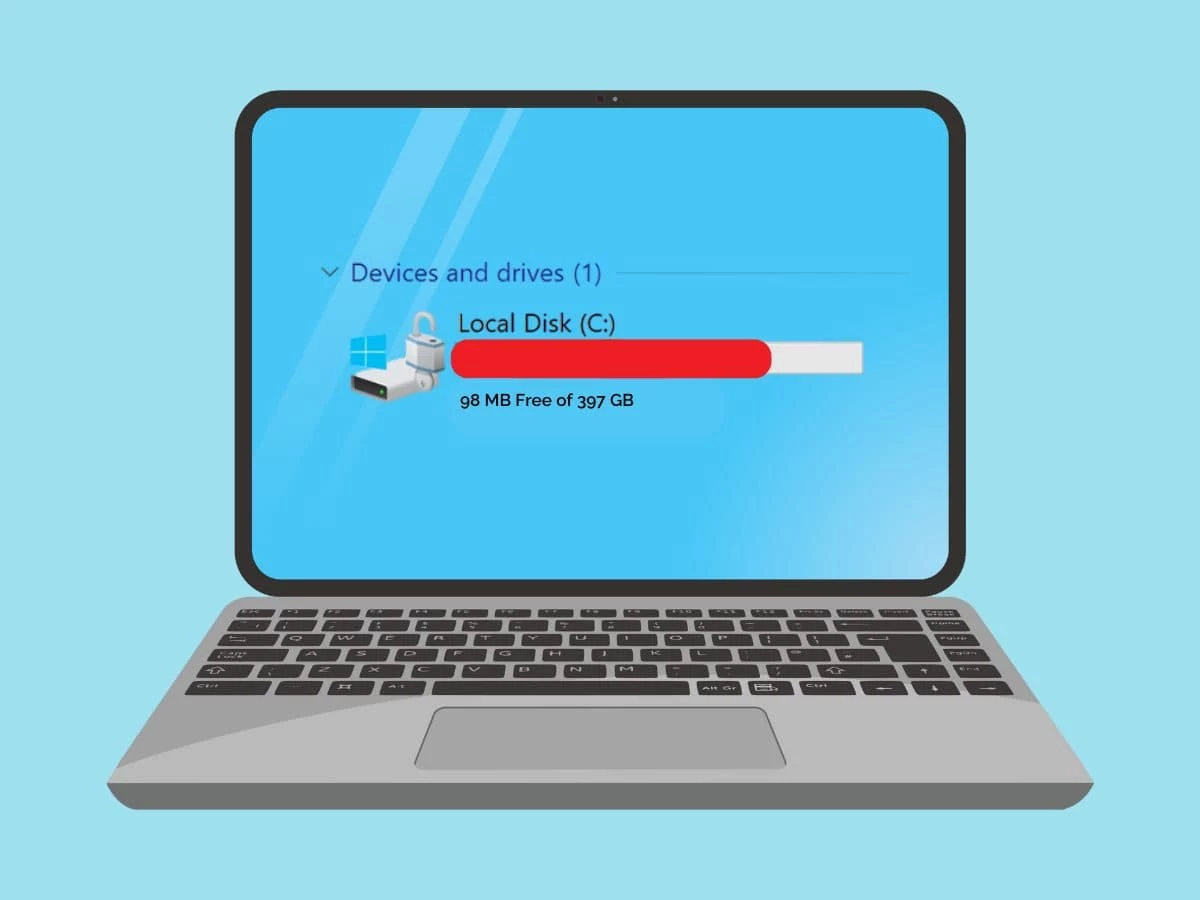
Why “Junk Files” Aren’t Just Annoying — They’re a Security Risk
Most people think junk files only steal storage space. That’s true — but it’s only half the story.
Every time you install an update, visit a website, or uninstall a program, Windows leaves behind fragments: temp files, log files, cached thumbnails, and even old Windows Update leftovers. Over a year, these can easily consume 20–50 GB on a heavily used machine.
But the bigger problem? Stale data is a privacy and security hazard. Old browser caches may contain saved login tokens. Outdated Windows log files can reveal system paths or software versions that attackers could exploit. And if you ever sell or recycle a PC without properly cleaning these files, you’re leaving digital fingerprints behind.
According to Microsoft’s own documentation, temporary files are designed to be deleted — but Windows often waits too long or simply forgets. That’s why learning how to clean junk files manually (or with safe automation) is an essential digital hygiene skill.
The Two Built‑in Tools You Already Own (But Probably Ignore)
Most Windows users have never opened Storage Sense. And those who find Disk Cleanup usually miss the “Clean up system files” button — which is where the real magic happens.
Let me walk you through both, starting with the one I use weekly.
1. Storage Sense: Your Hands‑Free Assistant on cleaning junk files
Storage Sense debuted in Windows 10 version 1809 and became truly useful in Windows 11. It runs in the background and automatically deletes:
- Temporary files that haven’t been used in over 24 hours
- Recycle Bin items older than a set number of days
- Files in your Downloads folder (if you enable that — more on the danger below)
- Previous versions of OneDrive files that are now “cloud‑only”
How to set it up (30 seconds):
- Press Windows + I → System → Storage
- Toggle Storage Sense to On
- Click “Run Storage Sense now” for an immediate cleanup
- Click the Storage Sense text to configure its schedule
I recommend: Run weekly, delete Recycle Bin files after 30 days, and — this is critical — set Downloads folder cleanup to “Never” unless you’re absolutely sure you don’t store anything important there. I learned this the hard way after losing a driver installer I needed for a fresh Windows reinstall.
2. Disk Cleanup: The Deep Clean That Finds Hidden Gigabytes and
Disk Cleanup has been around since Windows 95, but it’s still the most thorough option. The key is clicking the “Clean up system files” button — without that, you won’t see Windows Update Cleanup, Delivery Optimization Files, or old device driver packages.
Step‑by‑step:
- Type Disk Cleanup in the Start menu and open it
- Select your system drive (usually C:)
- Click Clean up system files (you may need admin permission)
- Wait while it rescans — this can take 30–60 seconds
- Check the boxes for the categories below
Here’s the breakdown of what each option actually does:
| Category | Typical Size | Safe to Delete? | Why You Might Keep It |
|---|---|---|---|
| Windows Update Cleanup | 1–8 GB | ✅ Yes | Only if you plan to uninstall a recent update |
| Delivery Optimization Files | 500 MB–2 GB | ✅ Yes | These are just update caches shared with other PCs |
| Recycle Bin | Variable | ✅ Yes | Obvious |
| Temporary Files | 100 MB–3 GB | ✅ Yes | Temporary installation files |
| Previous Windows Installations | 10–30 GB | ⚠️ Only if stable | Removes ability to roll back to older Windows version |
| Device Driver Packages | 200 MB–1 GB | ⚠️ Careful | Might be needed if you plug in older hardware |
My personal rule: Always keep “Previous Windows Installations” for at least two weeks after a major feature update. I’ve had to roll back twice in the last five years — both times because a game or audio driver broke. That 20 GB of “junk” saved my sanity.
The Manual Method to Clean Junk Files: When Built‑in Tools Miss Something
Occasionally, Storage Sense and Disk Cleanup leave behind orphaned temp files — especially those created by installation wrappers or poorly coded software. That’s when I go manual.
Access the user temp folder:
- Press Windows + R, type %temp% , press Enter
- Press Ctrl + A to select everything, then Delete
- Skip any “file in use” errors — those files will delete after a restart
System temp folder (optional):
- Navigate to
C:\Windows\Tempand repeat the process. Windows may ask for permission; click “Continue.”
Is this safe? Yes — with one huge caveat: never delete the “Prefetch” folder (C:\Windows\Prefetch). I’ve seen YouTube tutorials claiming it “speeds up your PC” — that’s a myth. Microsoft explicitly advises against deleting Prefetch because it stores load‑time optimizations. Removing it won’t free meaningful space (usually <10 MB), but it will temporarily slow down app launches.
A Visual Look at What You’re Cleaning (Text Infographic)
Imagine the following as a clean infographic you could screenshot or print:
YOUR DRIVE BEFORE CLEANING:
[████████████░░░░░░░░] 120 GB used / 256 GB total
  ├─ Windows & programs: 65 GB
  ├─ Your documents:     30 GB
  ├─ JUNK FILES:        25 GB  ← Windows Update leftovers, temp files, old caches

YOUR DRIVE AFTER SMART CLEANUP:
[██████████░░░░░░░░░░░░] 95 GB used / 256 GB total
  ├─ Windows & programs: 65 GB
  ├─ Your documents:     30 GB
  ├─ Junk remaining:     <1 GB (safe system caches)
That’s the difference proper maintenance makes — no paid software required.
Do You Really Need Third‑Party Cleaners? (Spoiler: No)
I used to recommend CCleaner. Then, in 2017, its own distribution channel was hacked to deliver malware to millions of users. More recently, many “free” cleaners have turned into ad‑ware that nags you to upgrade, installs browser toolbars, or runs in the background consuming more resources than they save.
The only legitimate use case for a third‑party tool is advanced storage visualization — seeing exactly which folders are eating space. For that, I use a portable, open‑source tool called WizTree (free, no installation required). It scans your drive in seconds and shows a treemap of large files. Then I manually delete what I don’t need, using Windows’ own file manager.
Personal experience: WizTree once revealed a 45 GB “debug dump” file left by a crashed Adobe app. No built‑in Windows tool flagged it. But I still used Windows File Explorer to delete it — no cleaner required.
A Simple Maintenance Schedule That Actually Works on How to Clean Junk Files
You don’t need to clean junk files every day. Over‑cleaning can actually hurt performance because Windows has to rebuild caches from scratch. Here’s my realistic routine:
- Weekly (2 minutes): Empty the Recycle Bin. That’s it.
- Monthly (10 minutes): Run Storage Sense manually. Then open Disk Cleanup (without system files) and check “Temporary files” and “Recycle Bin.”
- Every 3 months (20 minutes): Run Disk Cleanup with “Clean up system files.” Review the “Previous Windows Installations” option — if you haven’t needed to roll back in over a month, delete it. Also run a quick manual check of
%temp%. - Once a year (30 minutes): Use WizTree to hunt for hidden large files (old ISO images, forgotten video projects, crash dumps).
The Three Mistakes That Could Break Your PC (And How to Avoid Them)
I’ve made every mistake below — so you don’t have to.
Mistake #1: Checking Every Box in Disk Cleanup
“Clean up system files” shows options like “Device driver packages” and “Windows ESD installation files.” Deleting driver packages can cause old printers or scanners to stop working. Deleting the ESD file might prevent you from repairing Windows without an internet connection.
Fix: Only check boxes for categories you fully understand. When in doubt, leave it unchecked.
Mistake #2: Letting Storage Sense Auto‑Delete Your Downloads Folder
This is the #1 cause of “where did my file go?” panic. The Downloads folder is not a temporary folder — many people save work there temporarily and forget.
Fix: In Storage Sense settings, set “Delete files in my Downloads folder if they have been there for over” to Never. Instead, manually review Downloads once a month.
Mistake #3: Deleting “Previous Windows Installations” Immediately After an Update
I did this once. The next day, a Windows update caused my Wi‑Fi driver to stop working. I couldn’t roll back — I had to spend three hours reinstalling the driver manually.
Fix: Wait at least two weeks before deleting old Windows installations. That gives you a safety net.
Final Thoughts: You Already Have Everything You Need
Learning how to clean junk files isn’t about mastering complex commands or buying expensive software. It’s about trusting the tools Microsoft built, adding a few manual checks, and avoiding the traps that aggressive cleaners set.
Since I stopped using third‑party cleaners, my PC has been more stable, I’ve never lost important data, and I still reclaim 10–20 GB every few months. The best part? It’s completely free.
So go ahead — open Storage Sense, run Disk Cleanup, and take back that wasted space. Your PC will thank you with faster boots, smoother updates, and fewer “low disk space” warnings.
Have you ever accidentally deleted something important while cleaning your PC? Or do you have a favorite safe trick I missed? Drop a comment below — I reply to every reader. And if you found this guide useful, consider sharing it with a friend who’s still using a paid “PC optimizer.” They’ll thank you later.
Read More – Geekafterdark.com





Pingback: C Drive Is Full for No Reason? Here’s What’s Actually Happening and Fix 2026 - Geek After Dark
Pingback: How to Install Windows 11 Using USB: A Fresh Start 2026 - Geek After Dark
Pingback: Can I Delete Software Distribution Files? Safe Answer (2026) - Geek After Dark