

Introduction : Why Your Laptop is Running Slow
You open your laptop, click on a browser, and… nothing happens for a few seconds. Apps take forever to load, tabs freeze, and even basic tasks feel heavy. If your laptop is running slow, you’re not alone. Almost every system starts slowing down over time—but the good part is, most of the causes are fixable.
This guide doesn’t just repeat basic tips. It focuses on what actually works in real use—things you can do today without needing advanced technical skills.
Why Your Laptop Gets Slow Over Time
Before fixing the issue, it helps to understand what’s happening.
Most slowdowns come from:
- Too many background apps
- Storage getting full
- Outdated software
- Malware or unnecessary files
- Hardware limitations (like low RAM or old HDD)
Think of your laptop like a room—if you keep adding things and never clean it, it becomes harder to move around.
Quick Comparison: What Causes Slow Performance vs Fix
| Problem | Impact on Speed | Fix Difficulty |
|---|---|---|
| Too many startup apps | High | Easy |
| Low storage space | High | Easy |
| Background processes | Medium–High | Easy |
| Malware | High | Medium |
| Outdated OS/drivers | Medium | Easy |
| HDD instead of SSD | Very High | Medium |
| Low RAM | High | Medium |
10 Easy Fixes If Your Laptop Is Running Slow
1. Disable Startup Programs
When your laptop starts, many apps launch automatically. Most of them are unnecessary.
What to do
- Open Task Manager → Startup
- Disable apps you don’t need (Spotify, Skype, etc.)

Real impact
Startup time improves significantly, and background load reduces.
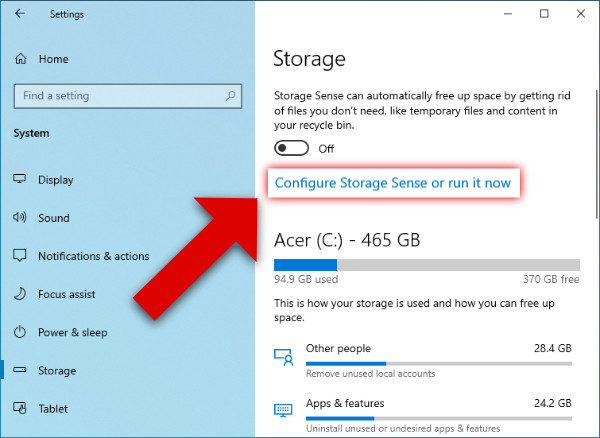
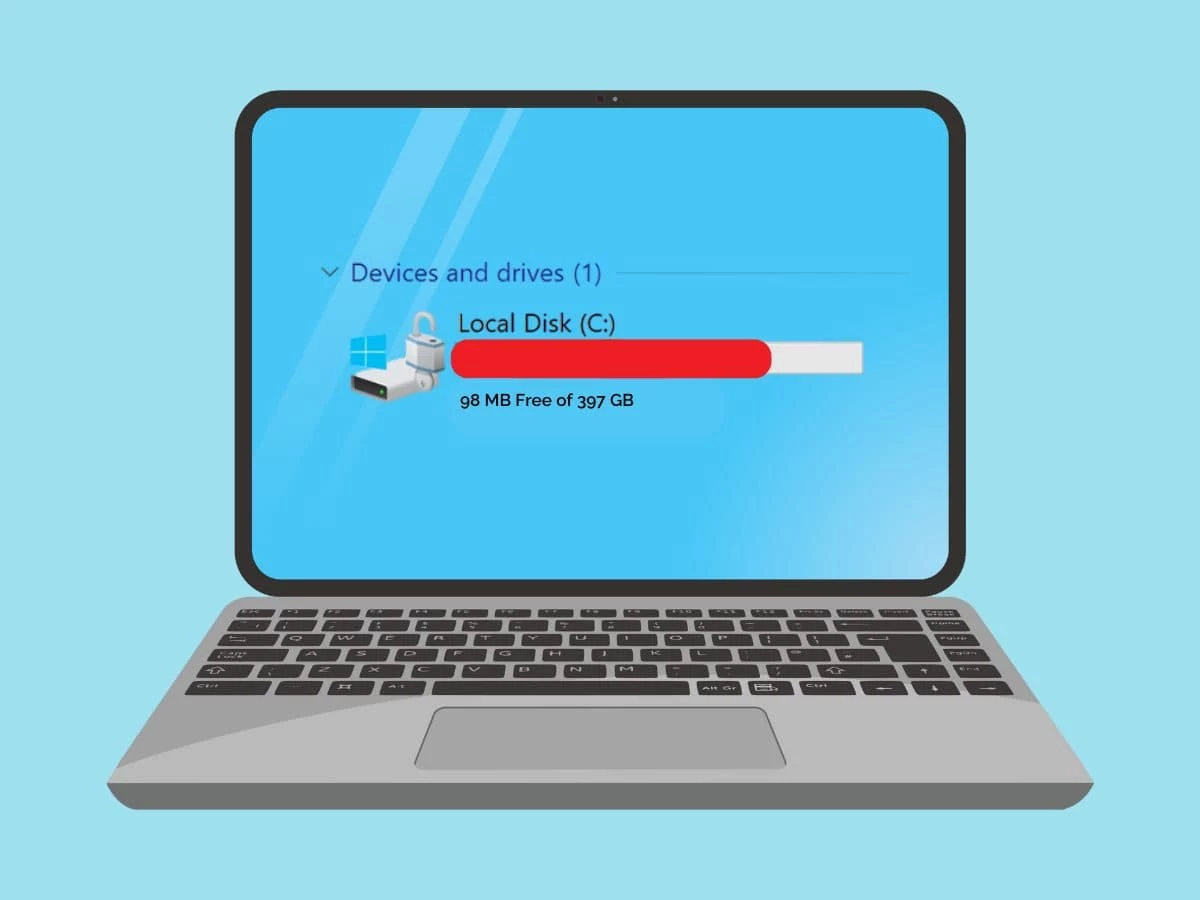
2. Free Up Storage Space
If your disk is almost full, your system struggles to function smoothly.
Quick cleanup
- Delete unused files and downloads
- Clear recycle bin
- Use built-in disk cleanup tools
Pro tip
Keep at least 20–25% storage free for optimal performance.
3. Uninstall Unused Programs
You probably installed apps once and never used them again.
Steps
- Go to Control Panel → Programs
- Remove anything unnecessary
:max_bytes(150000):strip_icc()/007-windows-uninstaller-to-remove-unused-programs-3506955-368bfda246864d5e83cff7d33e17239f.jpg)
Why it works
These apps often run hidden processes even when not opened.
4. Check for Malware or Viruses
A slow system can sometimes mean unwanted programs are running silently.
What to do
- Run a full system scan using antivirus
- Remove suspicious files
Insight
Even a single malware process can consume CPU and RAM continuously.
5. Reduce Background Processes
Some apps keep running even after closing them.
Fix
- Open Task Manager
- Check CPU and Memory usage
- End tasks you don’t need
Example
Browsers like Chrome can use multiple processes even for one tab.
6. Update Your Operating System and Drivers
Old software can cause performance issues and bugs.
Action
- Check for Windows/macOS updates
- Update graphics and system drivers
Why it matters
Updates often include performance improvements and bug fixes.
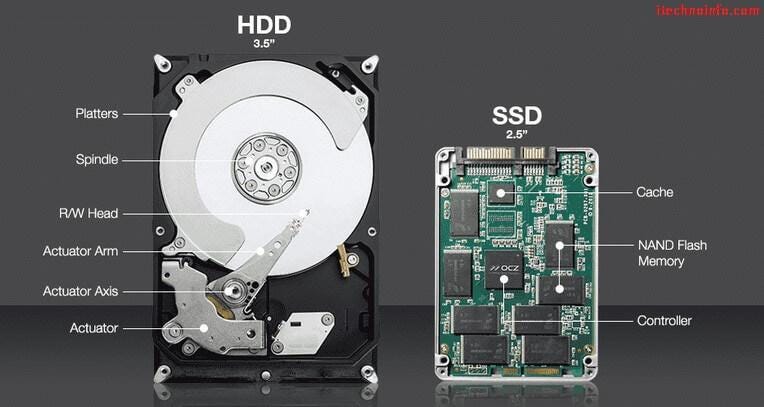
7. Switch to an SSD (If Using HDD)
This is one of the biggest upgrades you can make.
Difference
- HDD: Slow mechanical storage
- SSD: Fast, instant data access
Result
- Boot time drops from minutes to seconds
- Apps open almost instantly
8. Increase RAM (If Possible)
If your laptop struggles with multitasking, RAM could be the issue.
Signs you need more RAM
- System freezes when opening multiple tabs
- Apps crash frequently
Ideal range
- 8GB → basic usage
- 16GB → smooth multitasking
9. Adjust Visual Effects
Modern systems use animations and visual effects that consume resources.
Fix
- Search “Performance Options”
- Select Adjust for best performance
Result
Less load on CPU and GPU.
10. Restart Your Laptop Regularly
It sounds simple, but many people ignore it.
Why it works
- Clears temporary files
- Resets processes
- Frees memory
Habit
Restart at least once every 2–3 days.
Key Insights Most People Ignore
1. Browser Overload Is a Hidden Problem
Having 20+ tabs open can slow down even a powerful laptop.
Fix
- Use tab managers
- Close unused tabs
2. Background Sync Apps Drain Performance
Apps like cloud storage, email sync, and updates constantly run.
Tip
Pause syncing when not needed.
3. Heat Can Reduce Performance
When laptops overheat, they slow down automatically.
Solution
- Clean vents
- Use a cooling pad
- Avoid using on soft surfaces
4. Cheap Fix vs Real Fix
Many guides suggest temporary fixes. But real improvements come from:
- SSD upgrade
- RAM upgrade
These two alone can make an old laptop feel new.
Final Thoughts
If your laptop is running slow, the solution isn’t always buying a new one. In most cases, it’s about cleaning up what’s already there.
Start with simple fixes like:
- Removing startup apps
- Freeing storage
- Updating software
Then move to bigger upgrades like SSD and RAM if needed.
A well-maintained laptop can easily last years without major performance issues.
If this helped, try at least 3 fixes today and notice the difference.
Also:
- Share this with someone struggling with a slow laptop
- Check out your other tech guides for more practical tips
- Or comment what issue you’re facing—I can suggest a specific fix based on your system
- Microsoft Support – Covers built-in tools like Disk Cleanup, startup management, and system performance tips. Here
- Intel Performance Guide – Explains how processors, RAM, and storage affect laptop speed.
https://www.intel.com/content/www/us/en/support/articles/000005565
Read More – Geekafterdark


Pingback: How to Clear Windows Update Cache Properly 2026 Guide - Geek After Dark
Pingback: C Drive Is Full for No Reason? Here’s What’s Actually Happening and Fix 2026 - Geek After Dark
Pingback: Background Apps Slowing Laptop? 7 Fixes for a Faster PC (2026) - Geek After Dark
Pingback: How to Clean Junk Files in Windows 10/11 2026 - Geek After Dark