


Is Your PC Crawling? Here’s Exactly How to Fix 100% Disk Usage in Windows
Your laptop fan is roaring, simple tasks feel impossible, and you just clicked “Save” about five seconds ago. You finally press Ctrl + Shift + Esc to see what’s going on—and there it is. Task Manager is glowing red: 100% Disk Usage
If this sounds familiar, you’ve hit one of the most common—and most frustrating—performance bottlenecks in Windows. The good news is that while a 100% Disk Usage in Windows can feel like a death sentence for your productivity, it is almost always fixable. This guide will walk you through the exact steps to diagnose the culprit, apply the fixes that actually work, and (most importantly) keep this slowdown from coming back.
What Does “100% Disk Usage” Actually Mean?
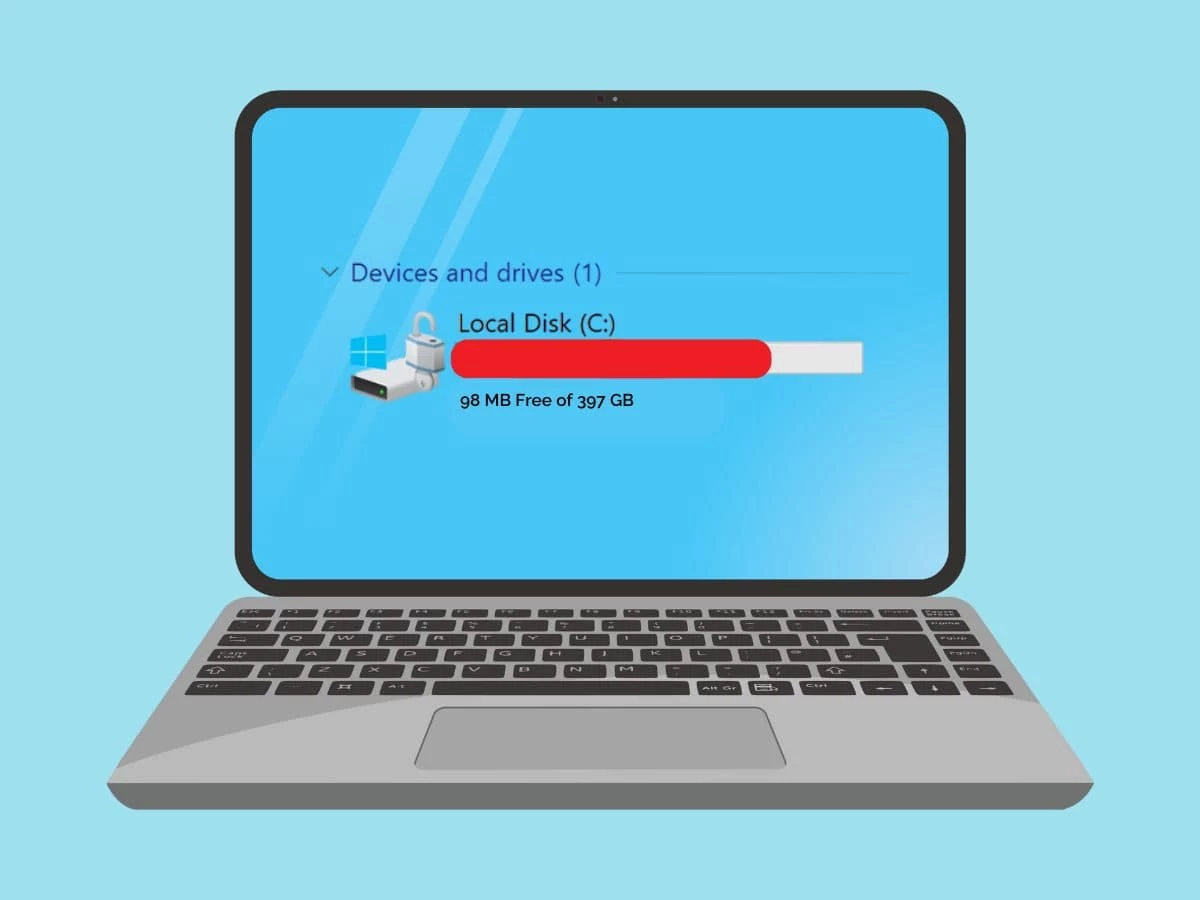
First, let’s clear up a major confusion. This has nothing to do with how full your hard drive is. Instead, think of it like a traffic jam: your disk (the component that holds your files, applications, and the Windows operating system) is receiving so many read/write requests that it simply cannot keep up with the traffic, leading to significant delays and system-wide freezes. Common symptoms include applications taking forever to open, random system freezes, and general sluggishness.
The First Step: Identify the Culprit
Before trying any fixes, do a little detective work. This saves hours of guesswork.
- Open Task Manager (
Ctrl + Shift + Esc). - Click More details if you only see a small window.
- Go to the Processes tab and click the Disk column header to sort from highest to lowest.
Watch the top of the list. Is it System? Service Host: SysMain? Windows Search? Maybe an antivirus program? This single piece of data tells you exactly where to point your troubleshooting efforts.
The Quick-Fix Cheat Sheet
Here’s a rapid-fire list of the most effective software-level tweaks to resolve 100% Disk Usage in Windows.
| Common Culprit in Task Manager | What It Means | Easiest Fix |
|---|---|---|
| SysMain (or Superfetch) | Preloads apps into RAM; can glitch and overload the disk. | Disable the SysMain service. |
| Windows Search | Indexes files for faster search; can get stuck in a loop. | Disable the Windows Search service. |
| Antivirus Software | Scans files constantly; real-time protection can hog resources. | Temporarily disable it (then re-enable!). |
| Disk at 100%, no clear process | Possible driver corruption or disk errors. | Update AHCI drivers & run chkdsk. |
How to Fix 100% Disk Usage in Windows (Step-by-Step)

Now, let’s diagnose and solve the problem. We are going from the most likely culprits to the most advanced fixes.
1. Disable the Top Offenders: SysMain and Windows Search
If you are using a modern PC (especially with an SSD), you can safely turn off these two services without breaking anything.
- SysMain (Superfetch): Designed to speed up app loading by preloading them into memory. Unfortunately, on slower HDDs or glitchy systems, it causes constant background reading.
- Windows Search: Constantly indexes your files. When it malfunctions, it can scan endlessly.
How to disable them:
- Press
Windows + R, typeservices.msc, and press Enter. - Scroll down to find SysMain. Double-click it.
- Under “Startup type,” set it to Disabled, click Stop, then Apply and OK.
- Repeat the exact same process for Windows Search.
After disabling these, check your Task Manager again. Many users see the disk usage drop back to normal immediately.
2. Stop Windows Update from Hogging Your Drive
Background updates are a major cause of 100% Disk Usage in Windows. When Windows downloads and installs updates in the background, it uses your disk heavily. Also, turn off Delivery Optimization, Windows uses this peer-to-peer sharing to upload updates to other PCs over the internet. Go to Settings > Windows Update > Advanced Options > Delivery Optimization and turn off “Allow downloads from other PCs.”
3. Scan for Corrupt System Files
If services aren’t the issue, your Windows system files might be corrupted. Windows has built-in tools to fix this, but you’ll need to run them from an elevated command prompt.
- Press
Windowskey, typecmd, right-click Command Prompt, and select Run as administrator. - Run the System File Checker:
sfc /scannow. Wait for it to finish. - Run the DISM tool to repair corrupted files:
DISM /Online /Cleanup-Image /RestoreHealth. Once finished, restart your PC.
4. Run CHKDSK to Find and Fix Hard Drive Errors
Physical disk errors can cause Windows to struggle reading and writing data, leading your disk to continually “retry” commands and stay at 100% usage.
- Open Command Prompt as Administrator (as above).
- Type
chkdsk C: /f /r /xand press Enter. (This checks drive C:, fixes errors, recovers data, and dismounts the drive). - You will be prompted to schedule the scan for the next restart. Type
Yand restart your PC.
This scan can take a while, so don’t do it if you’re in a hurry.
5. Adjust the Windows Virtual Memory (Paging File)
Virtual memory uses a portion of your hard drive as “fake RAM” when your actual RAM runs out. But if your system is constantly paging data, it can thrash your hard drive. Resetting virtual memory often helps.
- Hit
Windows + R, typesysdm.cpl, and press Enter. - Go to the Advanced tab > Under Performance, click Settings.
- Click the Advanced tab again > Under Virtual memory, click Change.
- Uncheck “Automatically manage paging file size for all drives.”
- Select your system drive (C:), and click Custom size. For the initial and maximum size, use the values recommended by Windows in the text below, or set it to about 1.5x your physical RAM.
- Click Set, then OK, and restart your computer.
6. Update Your SATA/RAID Drivers
Outdated or generic drivers for your disk controller can create a severe performance bottleneck.
- Right-click the Start button and select Device Manager.
- Expand IDE ATA/ATAPI controllers.
- Right-click your Standard SATA AHCI Controller (or similar) and choose Update driver > Search automatically for drivers. If Windows doesn’t find one, check your PC manufacturer’s website for the latest chipset or SATA drivers.
7. Consider the Nuclear Option: Upgrade to an SSD
This is the hard truth that a lot of blogs skip. If you are running Windows 11 or Windows 10 on an old mechanical hard drive (HDD), you might be fighting a losing battle. HDDs simply cannot keep up with the input/output demands of modern Windows. The single best performance upgrade you can make is swapping out your HDD for an SSD. The speed difference is enormous, and it will completely eliminate almost all disk usage bottlenecks overnight.
Pro Tips to Stop the Problem from Coming Back
- Keep 15-20% of your drive free: Low disk space causes Windows to work much harder, leading to high usage.
- Run Disk Cleanup: Type Disk Cleanup in the start menu, right-click it, and select Run as administrator. Then click Clean up system files to remove old Windows updates and other junk that can silently fill your drive.
- Limit Startup Programs: In Task Manager, go to the Startup tab and disable any unnecessary apps that launch automatically.
Frequently Asked Questions (FAQ)
Q: Is 100% disk usage bad for my PC?
A: It is a sign that your drive is overwhelmed, leading to lag, freezing, and slow system response time. While not immediately destructive, prolonged 100% usage can increase wear on mechanical drives and makes your PC nearly unusable.
Q: Why is my disk at 100% when nothing is open?
A: This is typically caused by Windows background services like SysMain (Superfetch), Windows Search, or System (ntoskrnl.exe) performing automatic maintenance tasks without your knowledge. Disabling these services as shown above can help.
Q: Will disabling SysMain cause problems?
A: For most modern PCs with SSDs, disabling SysMain (formerly Superfetch) has no negative impact and often fixes the 100% disk usage issue immediately.
Q: How do I check what process is causing high disk usage?
A: Open Task Manager (Ctrl + Shift + Esc), go to Processes, and click the “Disk” column to sort from highest to lowest. This reveals the exact process responsible.
Q: Can a virus cause 100% disk usage?
A: Absolutely. Malware frequently performs heavy read/write operations, copying itself or scanning your files. Run a Full scan with Windows Security to rule this out, as it’s one of the most common causes of unexplained high disk activity.
Your computer shouldn’t feel like a fight every time you boot it up. Now that you know exactly how to fix 100% Disk Usage in Windows, take 10 minutes to run through these steps. Let me know which trick finally cracked the case for you—drop a comment below and share your experience!
💬 Call to Action
Have you ever experienced the 100% Disk Usage slowdown firsthand? I’d love to hear what finally fixed it for you in the comments below. 💬
Enjoyed this guide? Subscribe to our newsletter for more Windows optimization tips, security advice, and tech troubleshooting delivered straight to your inbox.
Share this article with a friend if their computer has been running painfully slow lately!
Read More – Geekafterdark





Pingback: 17 Hidden Windows 11 Features You Should Be Using - Geek After Dark