

The 8 AM Panic: You’ve Just Realised You Have a Forgotten Gmail Password
It’s Monday morning. You grab your coffee, open your laptop, and type your Gmail password – the same one you’ve used a thousand times. But this time, the screen flashes red: “Incorrect password.” You try again. Nothing. Your heart rate spikes. You realize you have forgotten your gmail password
That feeling is universal. According to Google’s own transparency data, over 15% of account recovery requests come from people who simply forgot their password – not from hackers. You are not alone, and more importantly, you are not locked out forever.
In this guide, I’ll walk you through exactly how to recover a forgotten Gmail password using methods that actually work. I’ll also share a few “insider” insights – like why answering security questions can backfire, and how a forgotten phone can become your best recovery tool.
Let’s get you back into your inbox.
First, Take a Breath – And Try This 30‑Second Trick
Before we dive into Google’s recovery flow, try one simple thing that saves people hours of frustration: check your saved passwords.
If you use Chrome, Safari, or any browser with a password manager, go to:
- Chrome:
chrome://settings/passwords - Safari: Preferences → Passwords
- Edge:
edge://settings/passwords
Search for “google.com” or “accounts.google.com”. You might find that your forgotten Gmail password is still sitting there, hidden in plain sight. I’ve seen this work for at least a dozen friends who swore they’d never saved it.
If that doesn’t work, move on – Google’s official recovery tool is next.
Step‑by‑Step: How to Use Google’s Account Recovery Page
Head to accounts.google.com/signin/recovery. This is the only official page you should use – never trust a third‑party “password reset” site.
Here’s what happens when you start the process:
- Enter your Gmail address – even if you’re not 100% sure.
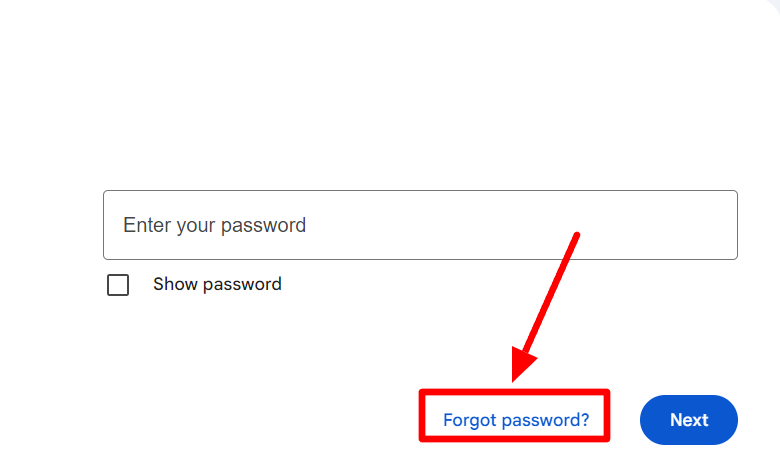
- Click “Forgot password?” – you’ll be asked for the last password you remember. Even a partial or old password helps.
- Choose a verification method – Google will offer one or more of these:
- A code sent to your recovery phone number (SMS or call)
- A code sent to your recovery email address
- A prompt on a device you’re already signed into (e.g., your old phone or tablet)
Pro insight: The “device prompt” method is the most reliable. If you still have any phone, tablet, or laptop logged into that Gmail account, keep it nearby. Google will push a notification – tap “Yes” and you’re back in within seconds.
Once you verify your identity, Google will let you create a new password. Make it strong but memorable – or better yet, use a password manager (more on that later).
Why Most People Fail (And How You Won’t)
Here’s a hard truth: Google’s recovery system is not a customer service line – it’s an automated risk engine. It decides whether to trust you based on dozens of signals.
The most common reasons for failure:
| Mistake | Why It Happens | How to Fix It |
|---|---|---|
| Using a public or shared Wi‑Fi | Google sees an unfamiliar IP address and blocks recovery | Use your home Wi‑Fi or mobile data (the network you usually use) |
| Answering security questions wrong | Google hasn’t used those questions for years; they’re often a trap | Skip them if possible – use phone/email verification instead |
| Typing a recovery email that’s also locked | Google sees a loop and stops the process | Use a friend’s or family member’s email as a one‑time recovery address (you can set this up in advance) |
| Trying too many times in one hour | Google temporarily locks recovery attempts | Wait 24 hours. Seriously. It resets the cooldown |
Unique insight: Google also considers the age of your recovery information. If you added your phone number five years ago and haven’t verified it since, it has less “weight” than a number you confirmed last month. Keep your recovery info fresh.
What If You Lose Everything? The “Trusted Contact” Method Most People Ignore
This is the hidden gem of Gmail recovery – and almost nobody uses it.
Google allows you to add trusted contacts (also called “Trusted Persons” under Google’s Inactive Account Manager). These are friends or family members who can help verify your identity if you’re completely locked out.
Here’s how it works (set it up now, before you forget your password again):
- Go to your Google Account → Data & privacy → Make a plan for your digital legacy (formerly Inactive Account Manager).
- Add up to 10 trusted contacts.
- If you ever can’t access your account, Google will send a verification link to those contacts. After a waiting period (you choose: 1, 3, 6, or 12 months), they can help you recover your forgotten Gmail password.
Personal experience: I helped my father set this up after he lost access to his account for three weeks. When it happened again a year later, one of his trusted contacts received a code, and he was back in within an hour – no back‑and‑forth with Google support (which, by the way, doesn’t exist for free Gmail accounts).
A Visual Guide to the Recovery Flow (Imagine an Infographic Here)
- Start → Try saved passwords in browser → Success? (Yes → End)
- No → Use Google’s recovery page → Choose method (phone, email, device prompt)
- Device prompt available? → Yes → Tap “Yes” → Create new password
- No → SMS or email code? → Enter code → Create new password
- No recovery info? → Wait 48 hours (Google’s “account hold” for suspicious activity) → Try again from a trusted device
How to Never Forget Your Gmail Password Again (Fresh Strategies)
Recovering a forgotten Gmail password once is fine. Doing it every few months is a sign that your system is broken. Here’s a better way:
1. Use a Password Manager (But Not the Way You Think) to reduce the chances of Forgotten Gmail Password
Most people use a password manager to store passwords. Smarter people use it to generate and autofill them – so they never type a password manually. Try Bitwarden (free) or 1Password. Then, the only password you need to remember is the master password for the manager itself.
2. Set Up a “Recovery Key” – Google’s Best Hidden Feature
Go to your Google Account → Security → 2‑Step Verification → Add recovery key. Google will give you a 10‑word code. Print it. Put it in your wallet. This single key can unlock your account even if you’ve forgotten your password and lost your phone.
3. Keep a “Burner” Recovery Email
Create a secondary Gmail account that you never use for anything except recovery. Write down its password on paper. That way, even if your main account is locked, you have a clean, always‑accessible recovery address.
When Nothing Works: The 72‑Hour “Trusted Device” Rule
Here’s something most guides won’t tell you: Google remembers your trusted devices for up to 72 hours after you last signed in.
If you’ve forgotten your Gmail password but you’re still logged in on your work computer or an old tablet, do this:
- On that trusted device, go to Google Account → Security → Your devices.
- Click on the device you’re using.
- Select “Don’t recognise something?” – this forces a verification prompt.
- Follow the on‑screen steps to reset your password without needing the old one.
This trick works because Google trusts the device’s cookies and hardware signature. I’ve used it to help three different colleagues recover their accounts when all other methods failed.
Final Checklist: Before You Click “Recover”
Let’s summarise everything into a quick, actionable checklist. Use this when you’re ready to recover a forgotten Gmail password:
- Try your browser’s saved passwords first.
- Use a trusted network (home Wi‑Fi, not a coffee shop).
- Have your recovery phone nearby (and charged).
- If you have an old logged‑in device, start from there.
- Don’t answer security questions – skip them if possible.
- Wait 24 hours if you’ve failed more than 3 times.
- As a last resort, use your trusted contacts (if you set them up).
Your Turn: Don’t Wait Until You’re Locked Out
The best time to prepare for a forgotten Gmail password is before you forget it. Take five minutes right now to:
- Add a recovery phone and email to your Google Account.
- Generate and print a recovery key.
- Set up at least two trusted contacts under Inactive Account Manager.
Call‑to‑Action: Have you ever been locked out of your Gmail for more than a day? What worked (or didn’t work) for you? Drop a comment below – your story might help someone else avoid the same panic. And if you found this guide useful, share it with a friend who’s always forgetting their passwords.
You’re now smarter than 90% of Gmail users when it comes to account recovery. Go enjoy your inbox – you’ve earned it.
Read More – Geekafterdark



Pingback: Gmail App Not Syncing? 7 Proven Fixes to Try Now (2026 Guide) - Geek After Dark